Scroll to the bottom of the page and click the "Start Analysis" button.
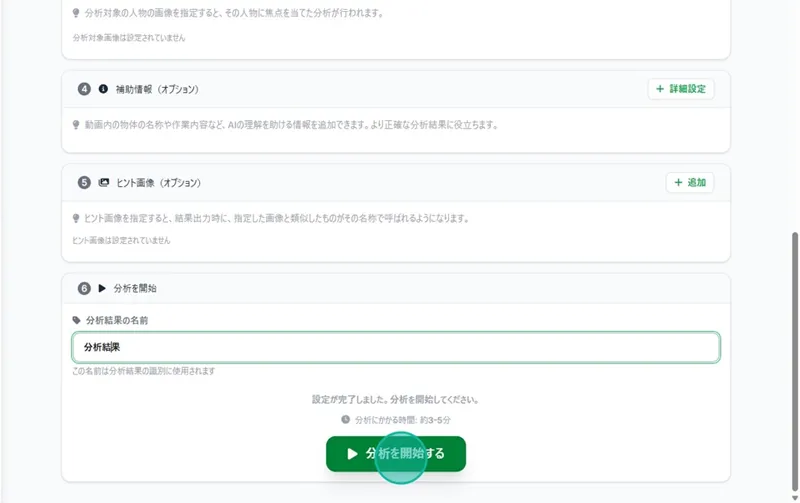
Results will be output in approximately 3 to 5 minutes.
If the analysis fails
Please check:Support
Viewing Analysis Results
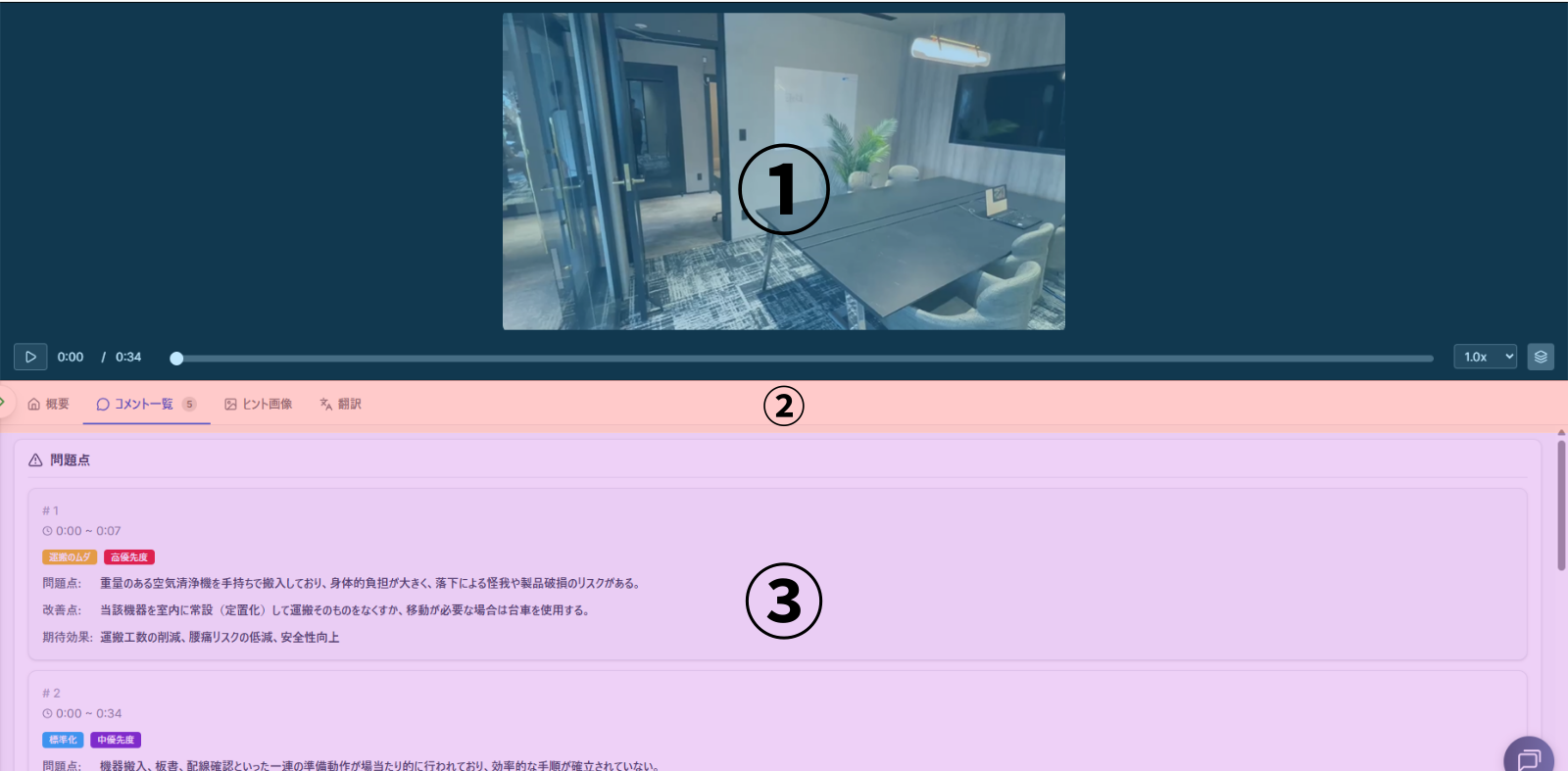
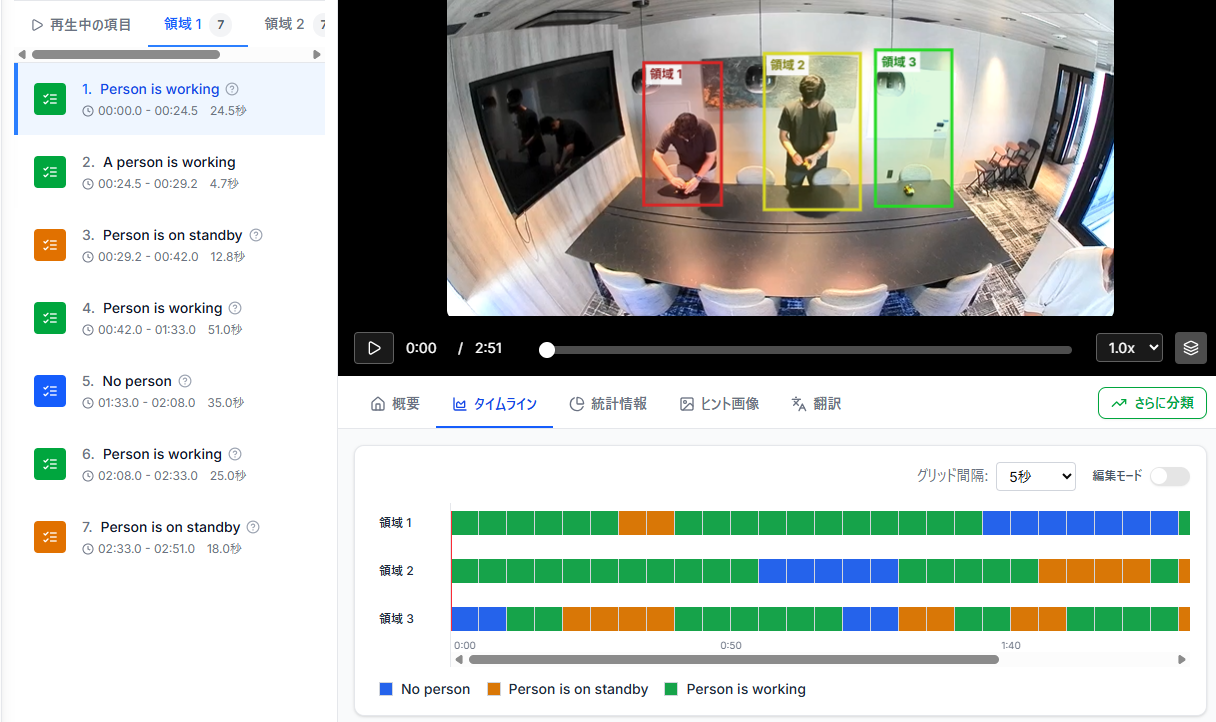
- Video Playback: Review the video and areas used for analysis.
- Display Tabs: Switch between different types of information.
- Result Display: View the generated analysis data.
Video Playback
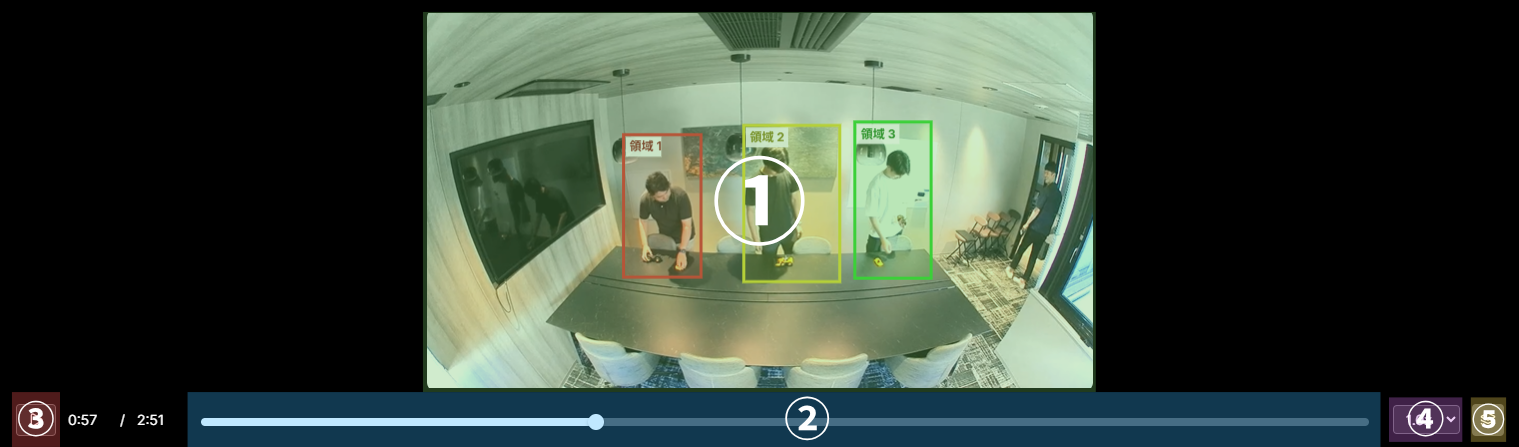
- Analysis Video: Displays the video used for analysis synced with the playback bar.
- Playback Bar: Play or pause the video.
- Play Button: Play/Pause control.
- Playback Speed: Choose from 0.5x to 8x speed.
- Show Area Button: Toggle the visibility of specified areas.
Display Tabs & Analysis Results
Overview
👉 Displays an overview of the analysis.
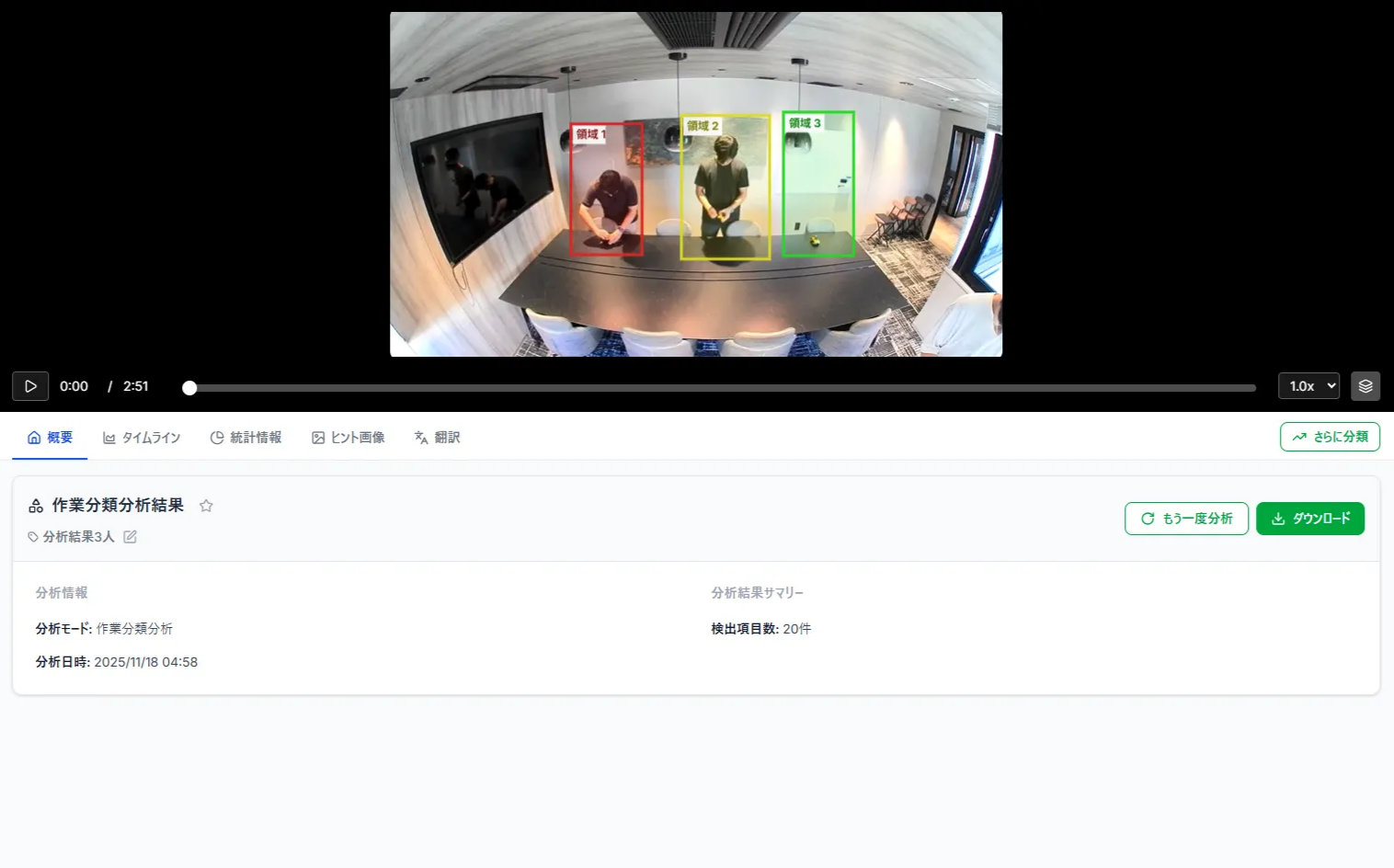
Add to Favorites
👉 Adding to favorites makes it easier to find videos from the video list.
Edit Analysis Result Name
Check here: Change from Analysis Overview
Re-analyze
Check here: Perform Re-Analysis
Download
👉 Download your analysis results.
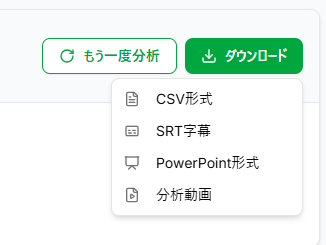
CSV Format
- Outputs a file named "(Analysis Name).csv" containing Area Name, Problem Description, Improvement Plan, Problem Type, Priority, Estimated Effect, and Start/End times.
SRT Format
Outputs a subtitle file in SRT format.
What is an SRT file?
💡 An SRT file is a text file for recording video subtitles.
SRT file example:> `00:00:00,000 --> 00:00:25,000[Area 1] [Problem] The workbench height is too low for the operator, causing a constant deep forward lean (slouched posture). This leads to fatigue accumulation and risks of back pain. Improvement: Adjust the workbench height or introduce a height-adjustable desk to allow for a comfortable, ergonomic posture.`
You can easily insert subtitles into videos using video editing software. Use this along with the analysis video download.
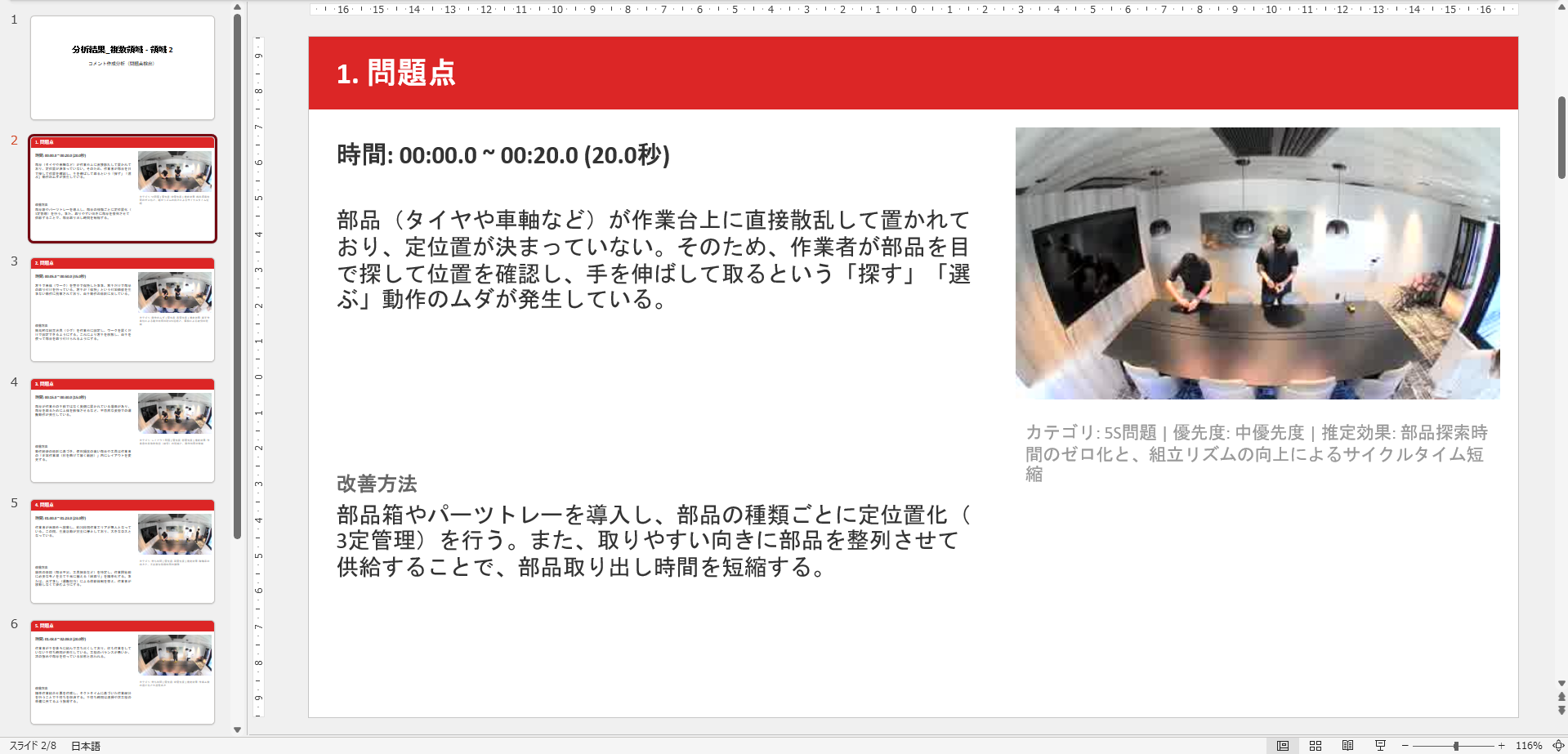
PowerPoint (PPTX) Format
Outputs a PPTX file for each specified area.
Analysis Video
Download the analysis video in its originally uploaded format.
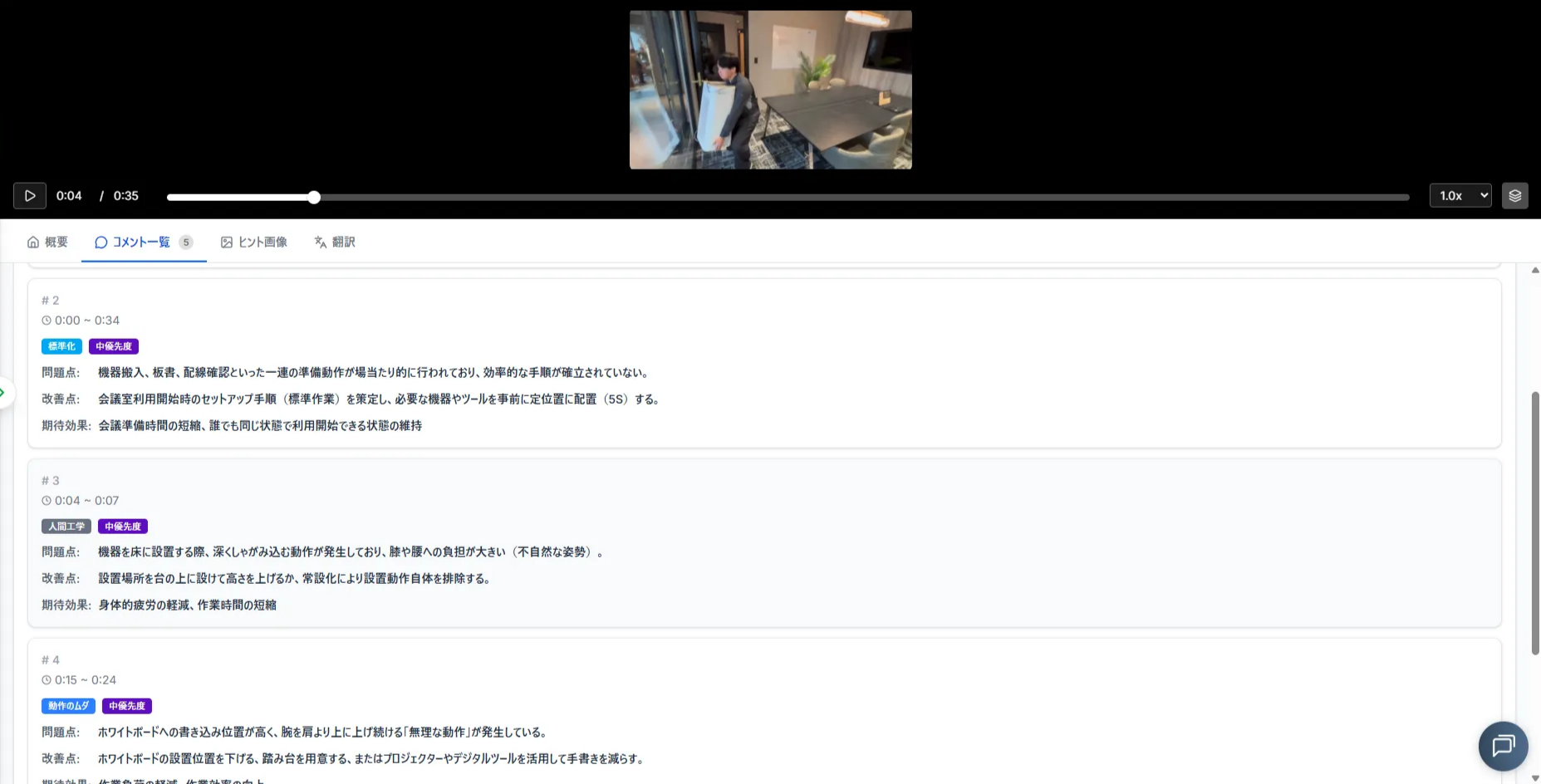
Comment List
👉 View a list of all generated comments.
- As you scroll, the playback screen shrinks, and the comments expand for easier reading.
- Clicking a comment jumps the video to the start of the segment where the issue was detected.
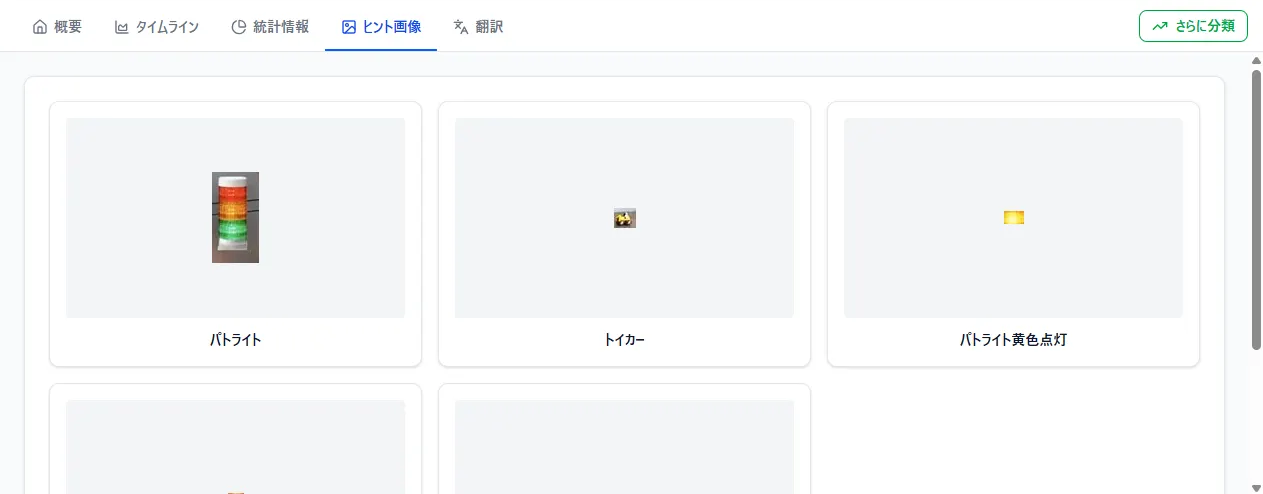
Hint Images
👉 Review the hint images registered before the analysis.
Translation
👉 Translate the results into your preferred language.
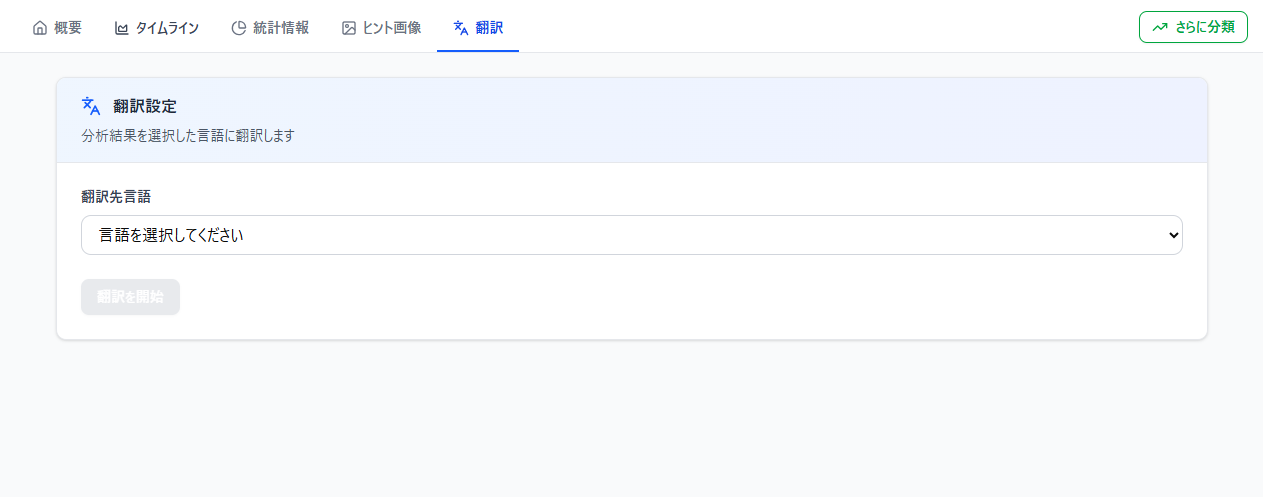
- Supported Languages:
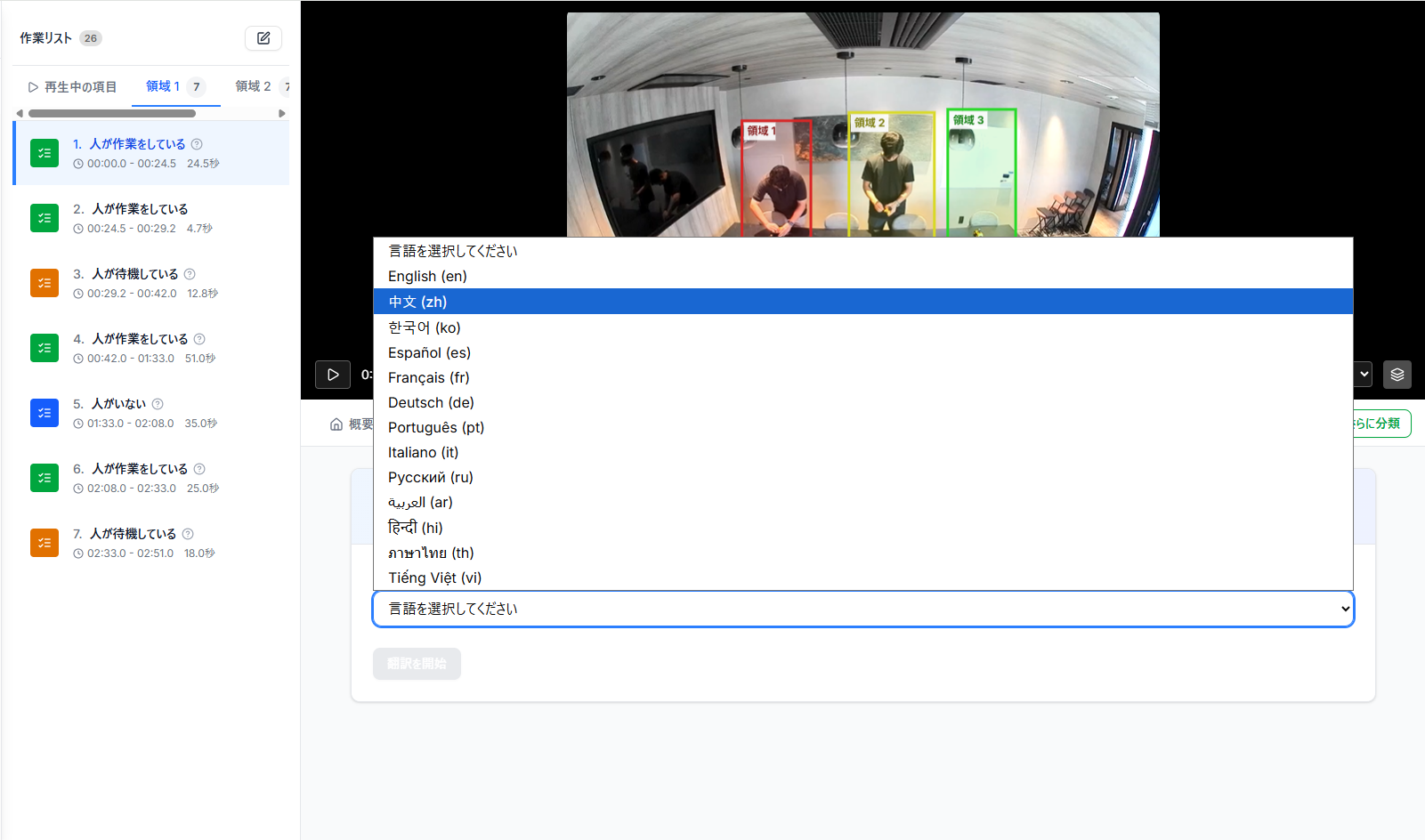
English, Chinese, Korean, Spanish, French, German, Portuguese, Italian, Russian, Arabic, Hindi, Thai, Vietnamese and more to come.
How to Translate
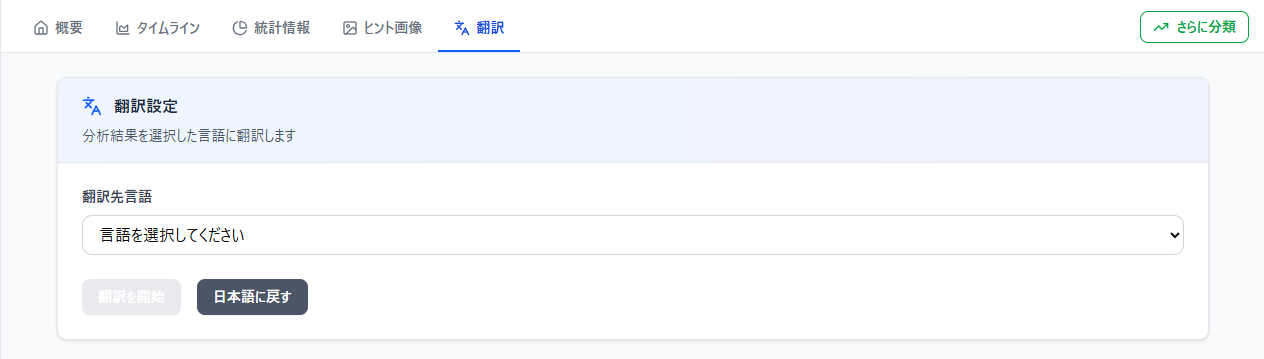
Step 1. Click "Please select a language" and choose from the list.
Step 2. Click "Start Translation" and wait for processing.
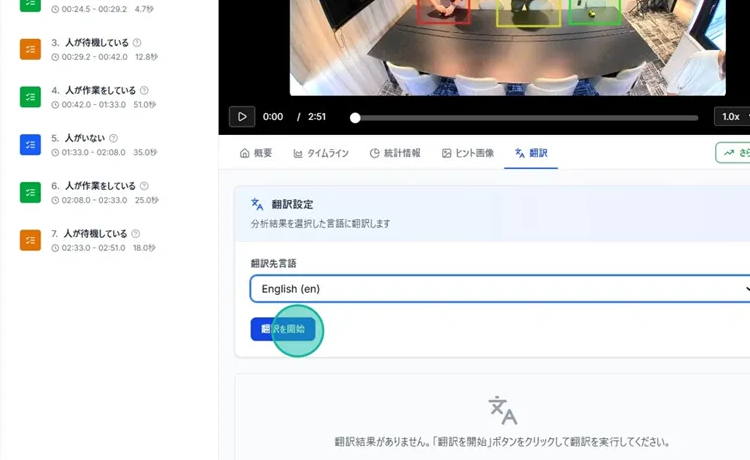
Step 3. The translated results will be displayed.
- A "Back to Japanese" button will appear, allowing you to switch back instantly.
- Translation time is reduced from the second time you execute it.