
👉 Here you can check various configurations and your current ticket usage.
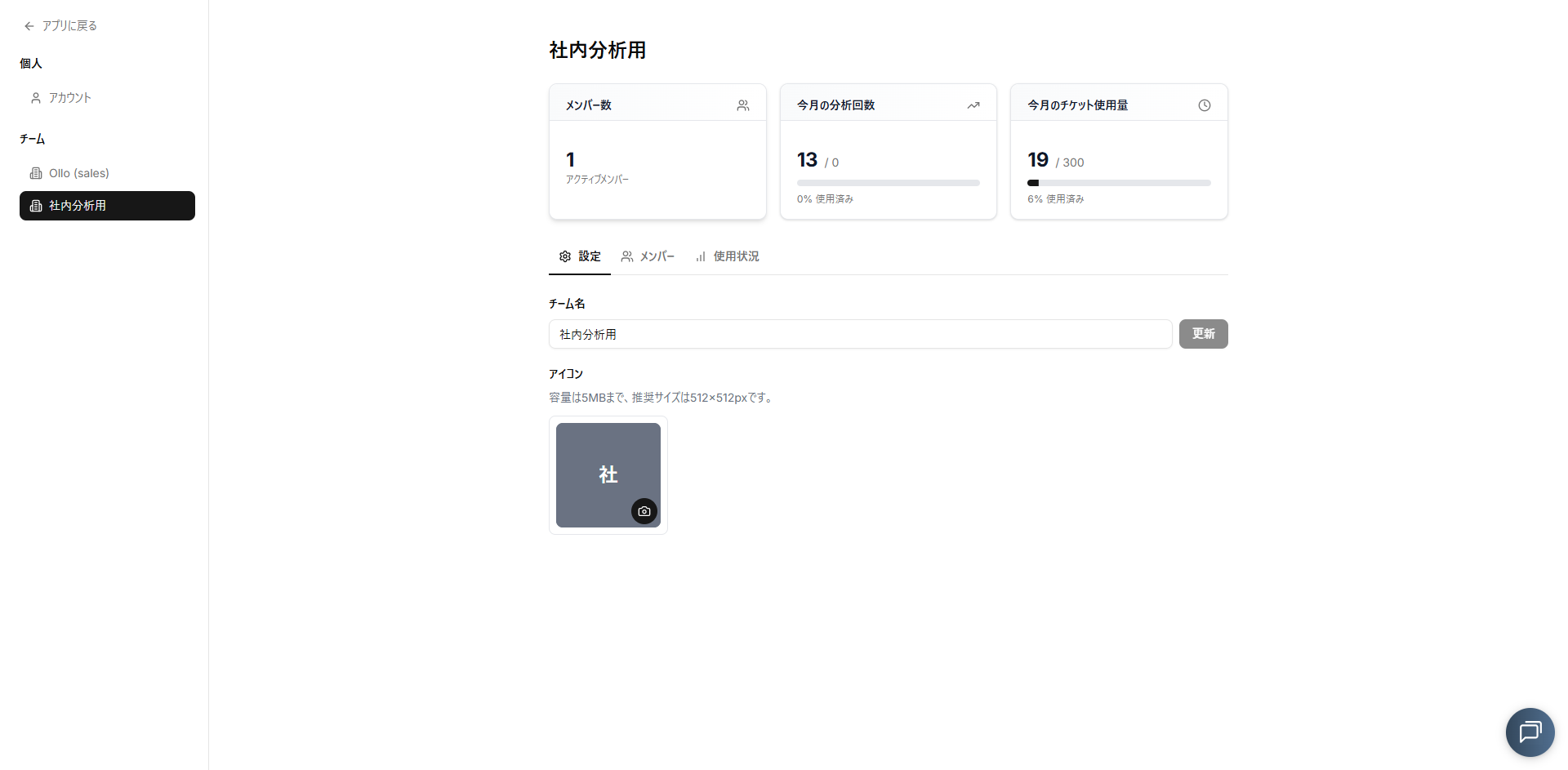
Team Settings
How to view Team Settings
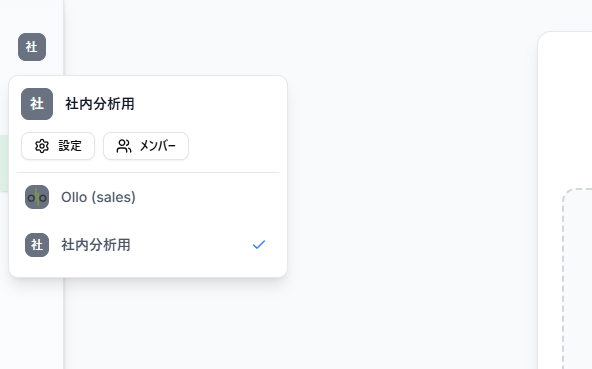
💡 Step 1. Click the Team Menu.
Refer to:
General Operations & Screen LayoutStep 2. The menu will display, from top to bottom: "Current Team," "Settings / Members," and "Team List.”
Step 3. Click "Settings."
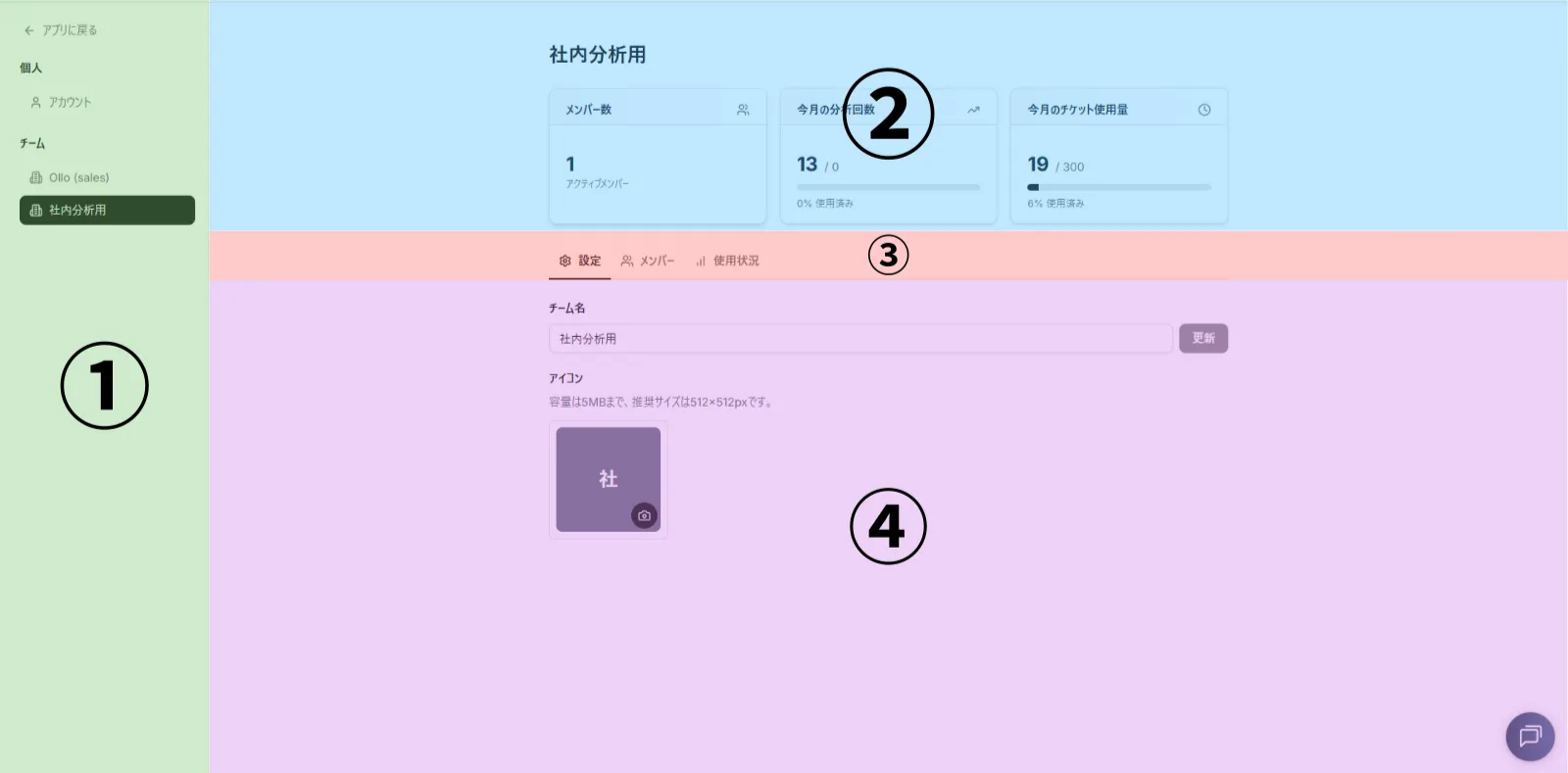
- Team Selection / User Settings: Switch between teams to modify specific settings or navigate to User Settings.
- Team Information: Displays a brief summary of the team’s status (e.g., remaining analysis count).
- Display Tabs: Select the items you wish to view.
- Detailed View: Shows specific details for the item selected in the "Display Tabs."
User Settings
How to view User Settings
💡
Step 1. Click the User Menu.Refer to:
General Operations & Screen Layout
Step 2. Click "Settings."
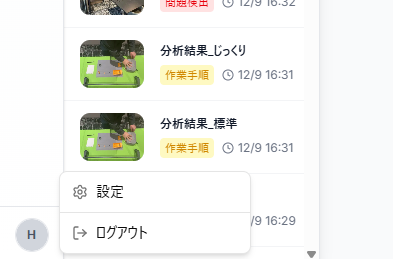
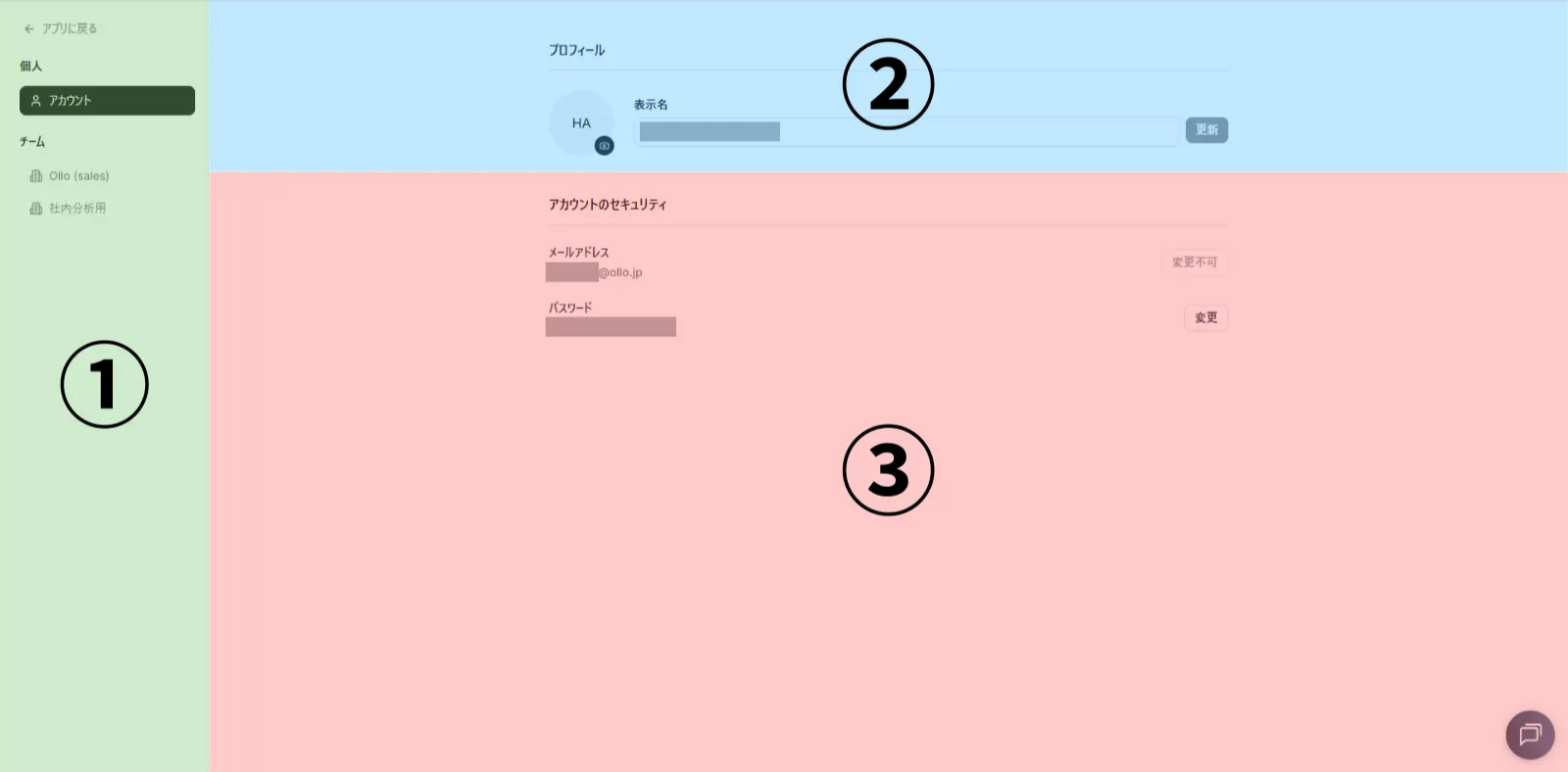
- Team Selection / User Settings: Switch between teams to modify specific settings or navigate to User Settings.
- Profile: Change your display name or profile picture.
- Account Security Settings: Verify your registered email address or change your password.