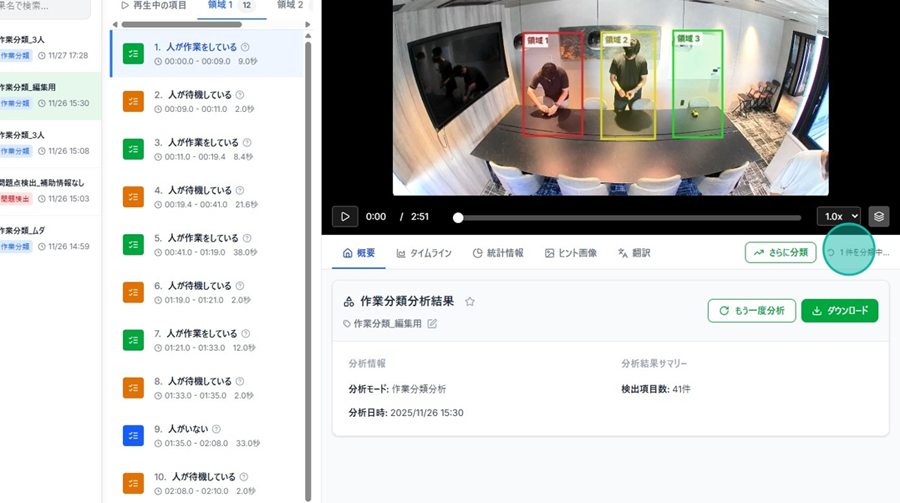
Editing the Analysis Result Name
👉 You can rename your analysis results at any time.
Step 1. Click the Three-dot menu (ellipsis) next to the analysis name.
*(This icon appears when you hover over an entry in the analysis history.)*
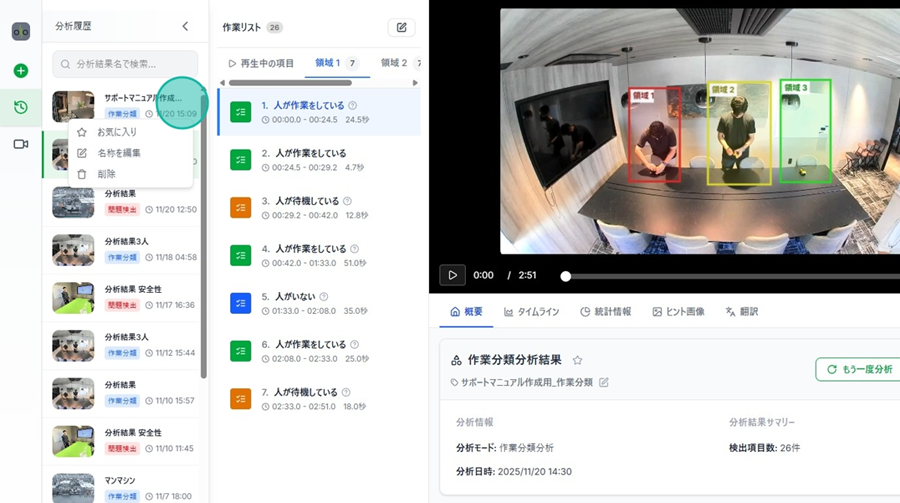
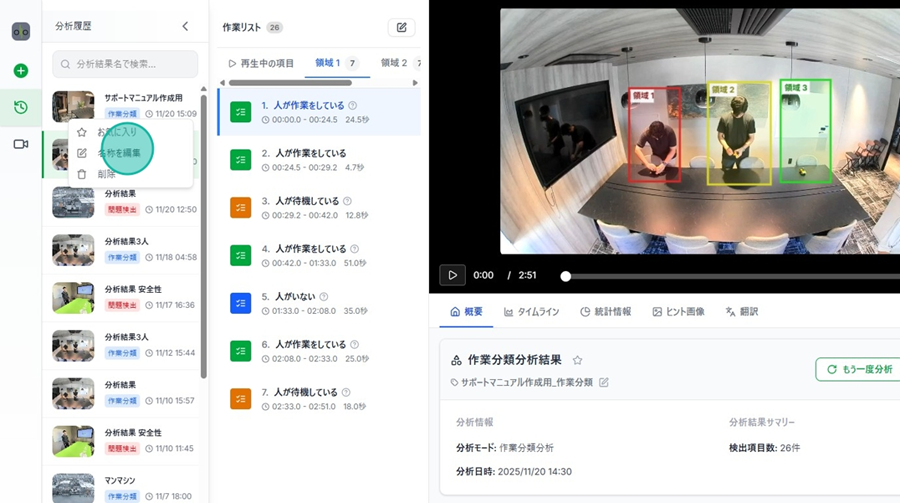
Step 2. Click Edit Name.
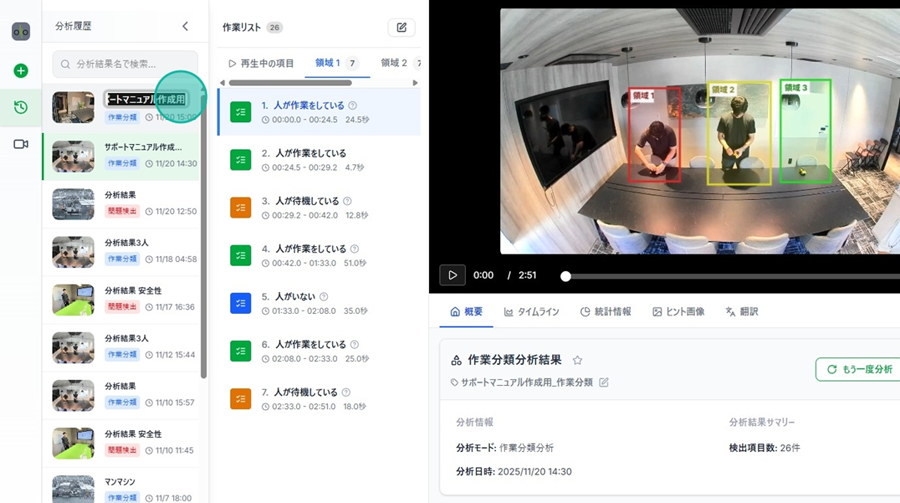
Step 3. Enter the new name and press Enter or click outside the text box.
Manually Modifying Classification Results
👉 You can manually re-classify results that were automatically categorized during analysis.
Instructions
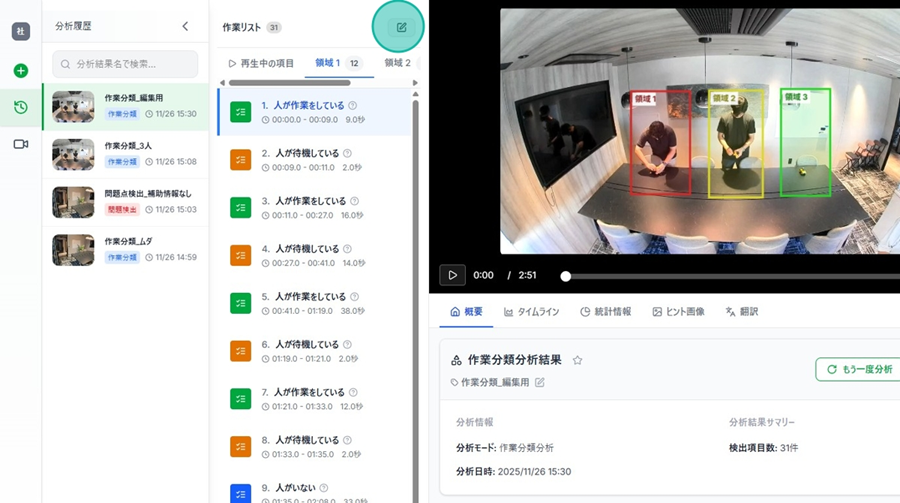
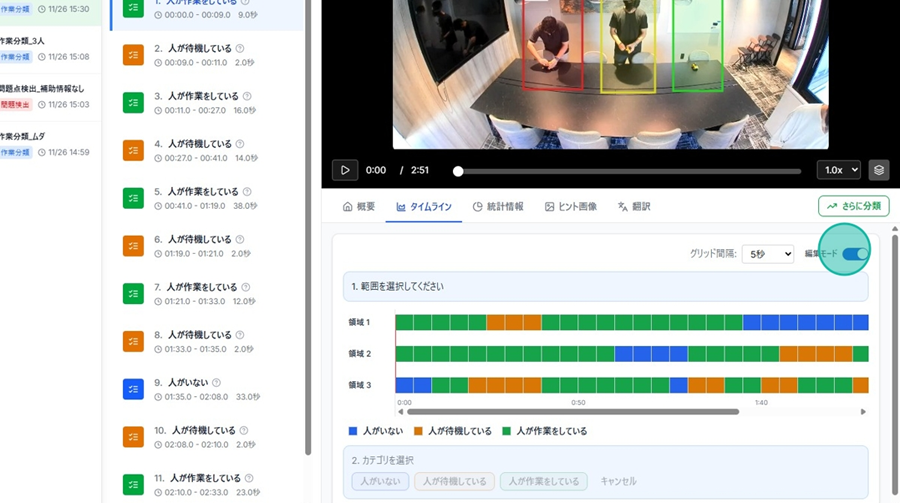
Step 1. Switch to Edit Mode.
Method A. Click the Edit button on the right side of the Task List.
Method B. Click the Edit button within the Timeline tab.
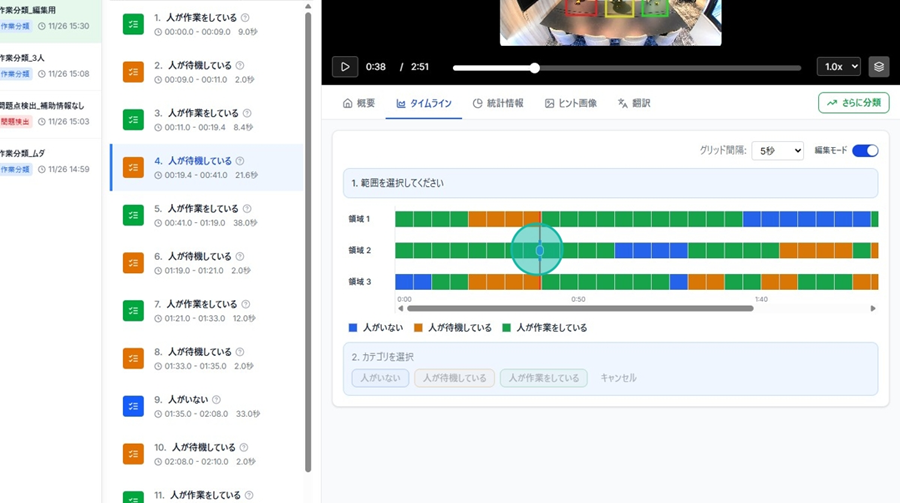
Step 2. Click and hold the left mouse button at the starting point, drag to the end point, and release.
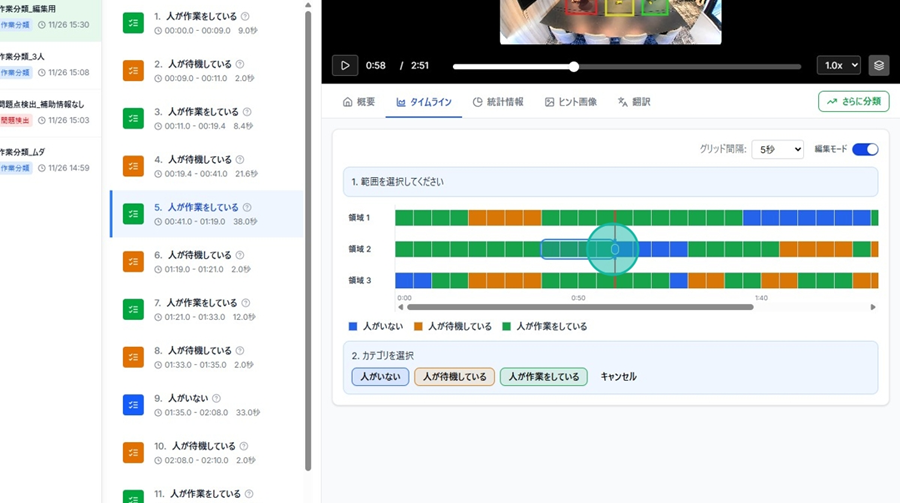
Step 3. Choose the category you want to apply to the selected range.
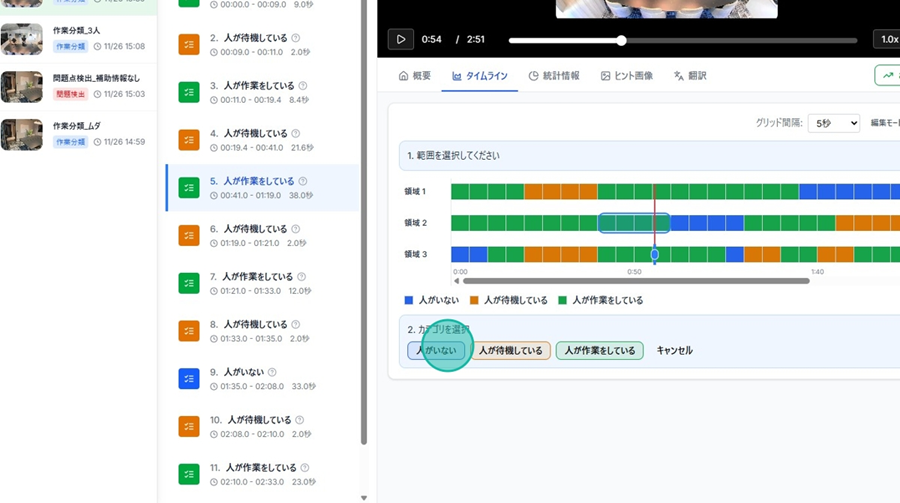
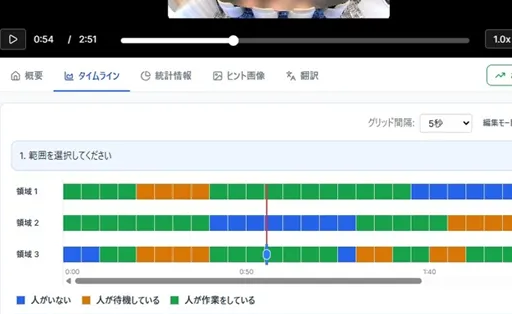
Step 4. Once the selected range reflects the new category, the process is complete.
Re-running an Analysis
👉 You can copy previous analysis conditions to perform a new analysis with the same settings.
Copying settings from the current results
Step 1. Click Re-run Analysis from the Analysis Overview.
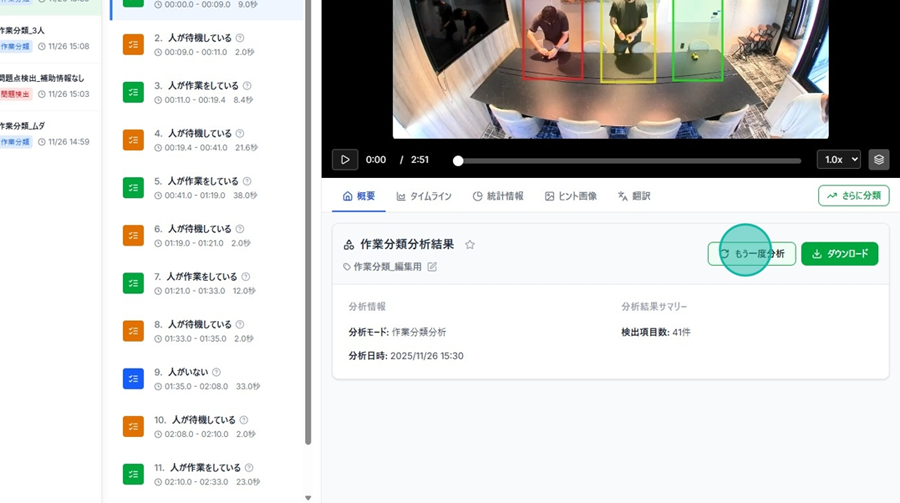
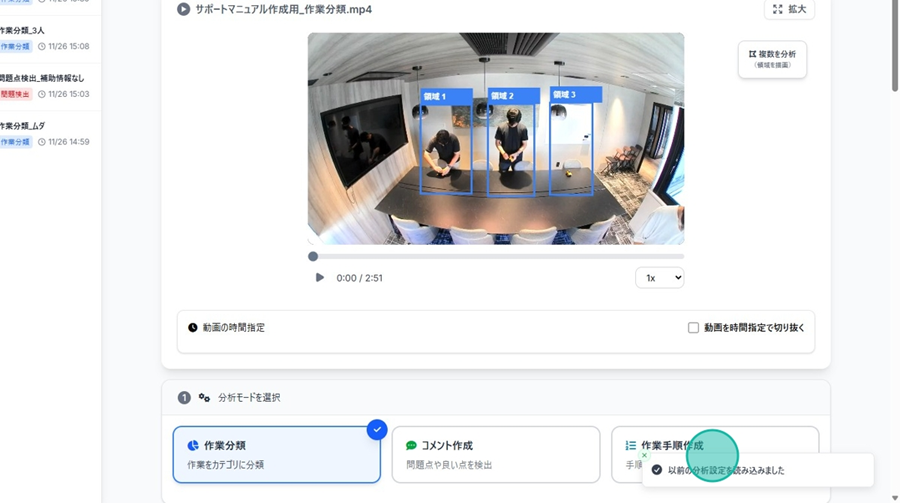
Step 2. A notification saying "Previous analysis settings loaded" will appear in the bottom right to confirm.
Copying conditions from past history
Please refer to: Viewing Analysis History (For Subsequent Analyses)
Performing Sub-Categorization
👉 You can further divide your classified categories into more specific sub-categories.
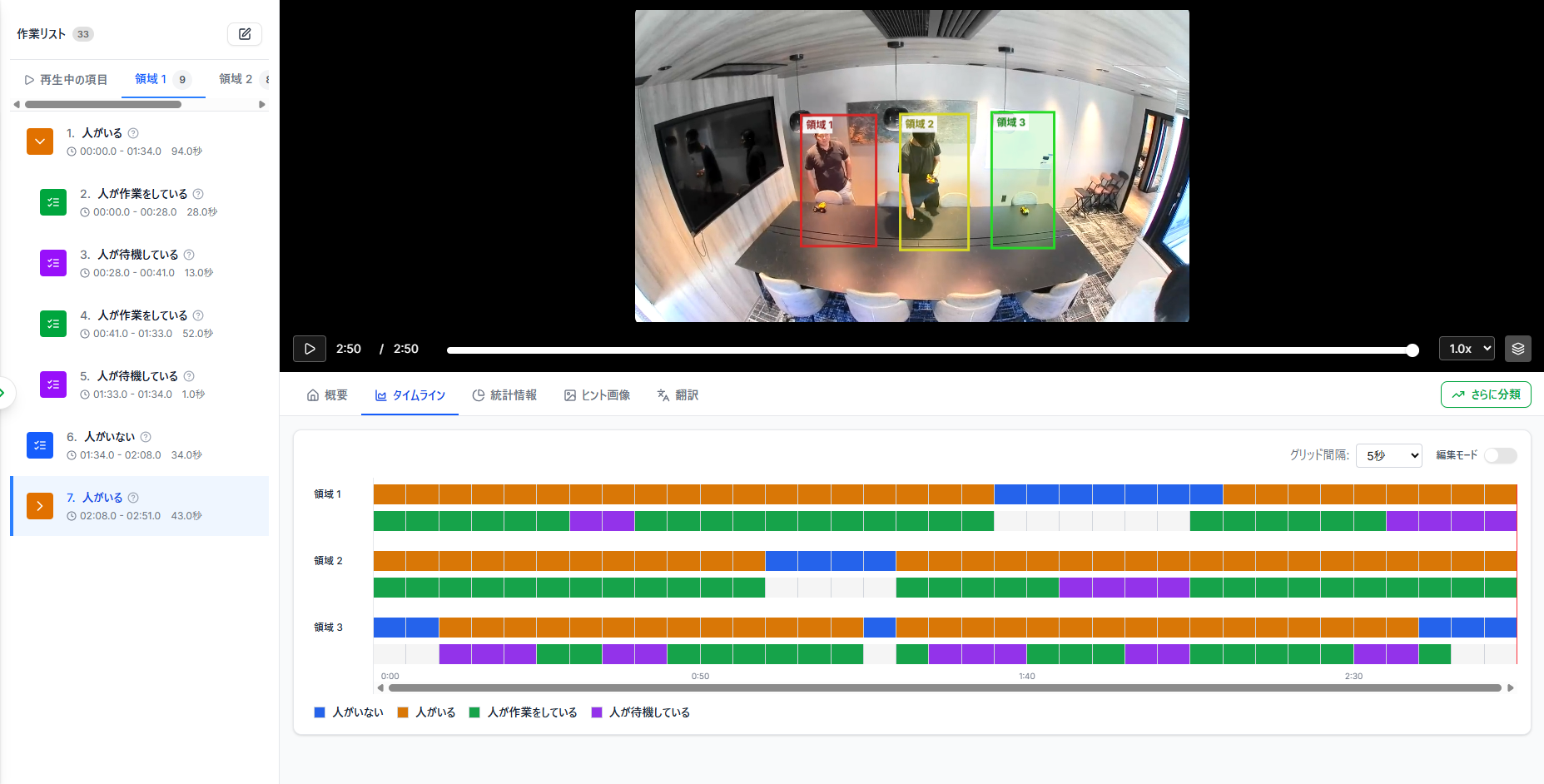
⚠️ Note: This action consumes analysis tickets.
⚠️ Warning: Overwritten analyses cannot be reverted.
Instructions
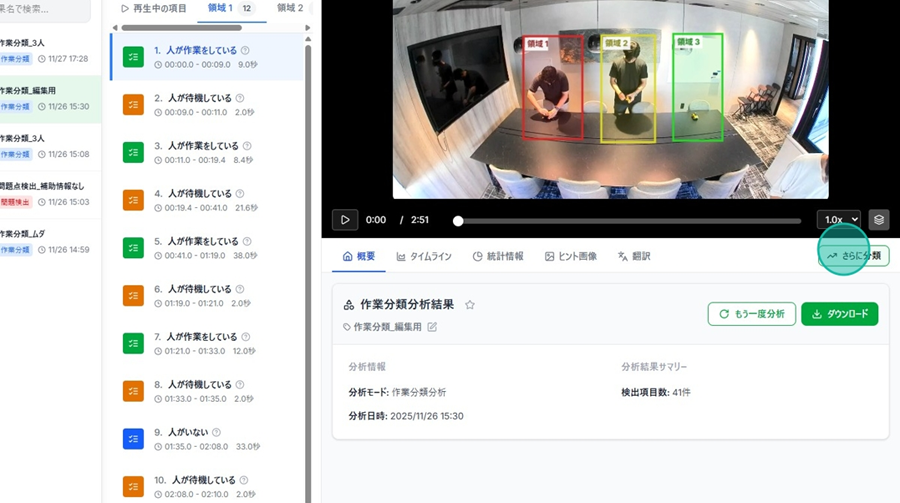
Step 1. Click Analyze Further from the analysis results screen.
Step 2. The current categories for each area will be displayed. Click on the specific item you wish to analyze in more detail.
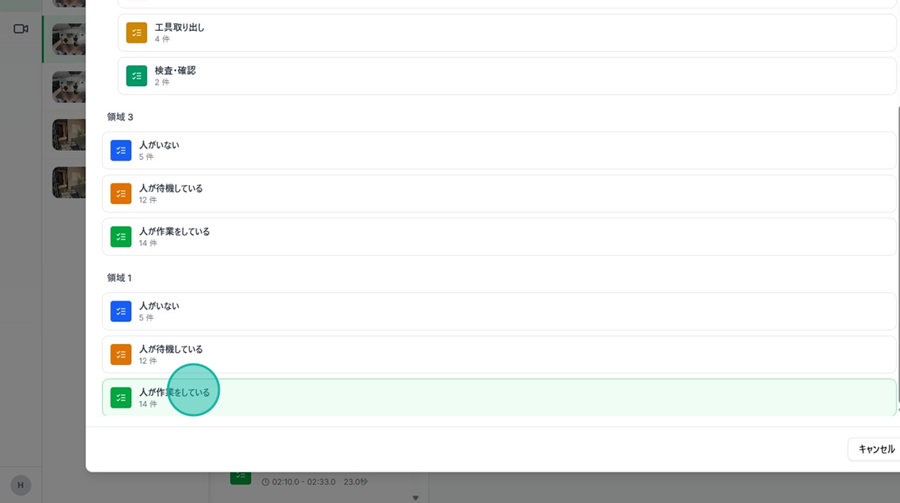
☝ Pro Tip: Using "Analyze Further" only allows you to refine one category in one area at a time. If you need to refine multiple areas or categories simultaneously, we recommend setting them up viaCreating Sub-Categories before starting the initial analysis.
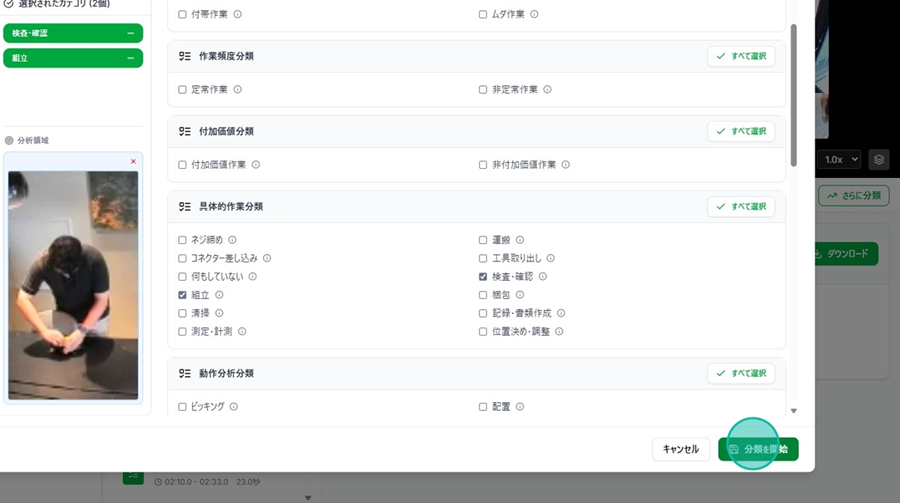
Step 3. Select the category you wish to use.
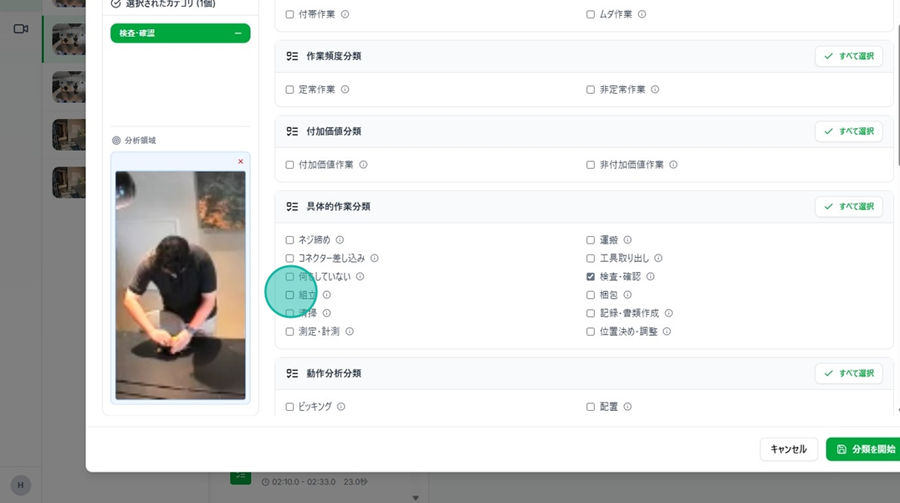
Step 4. Click Start Analysis.
☝ While the analysis is in progress, the following status will be displayed: "Analyzing [X] items..."
Image