
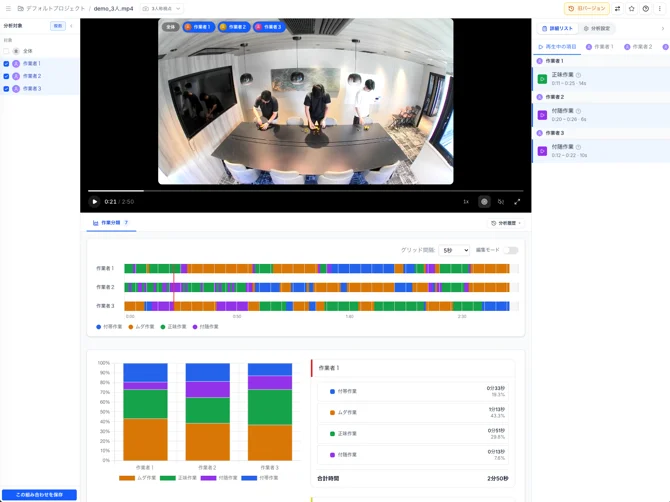
👉 The Work Classification feature allows you to obtain "Work Categories," "Timelines," and "Statistics" from your videos.
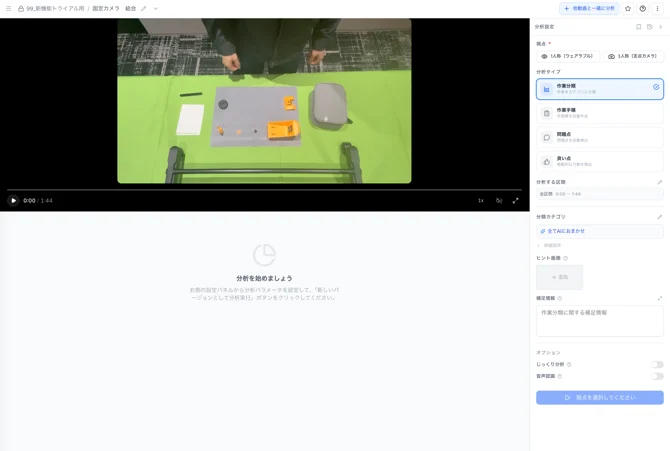
Customizing Settings
👉 By customizing settings, you can get high-precision outputs tailored to your specific needs.
Specifying Video Duration
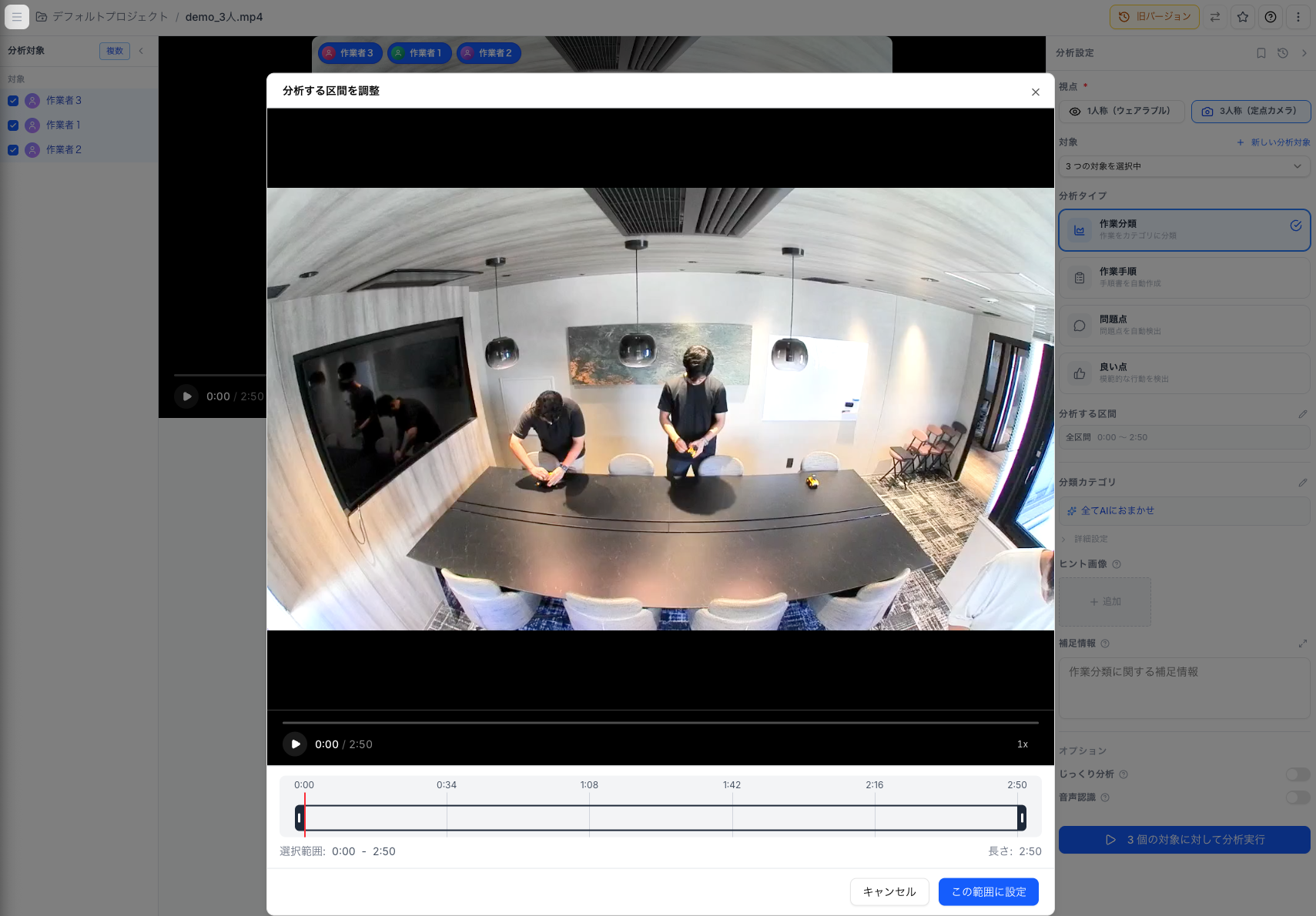
👉 You can trim a specific section of the video for analysis.
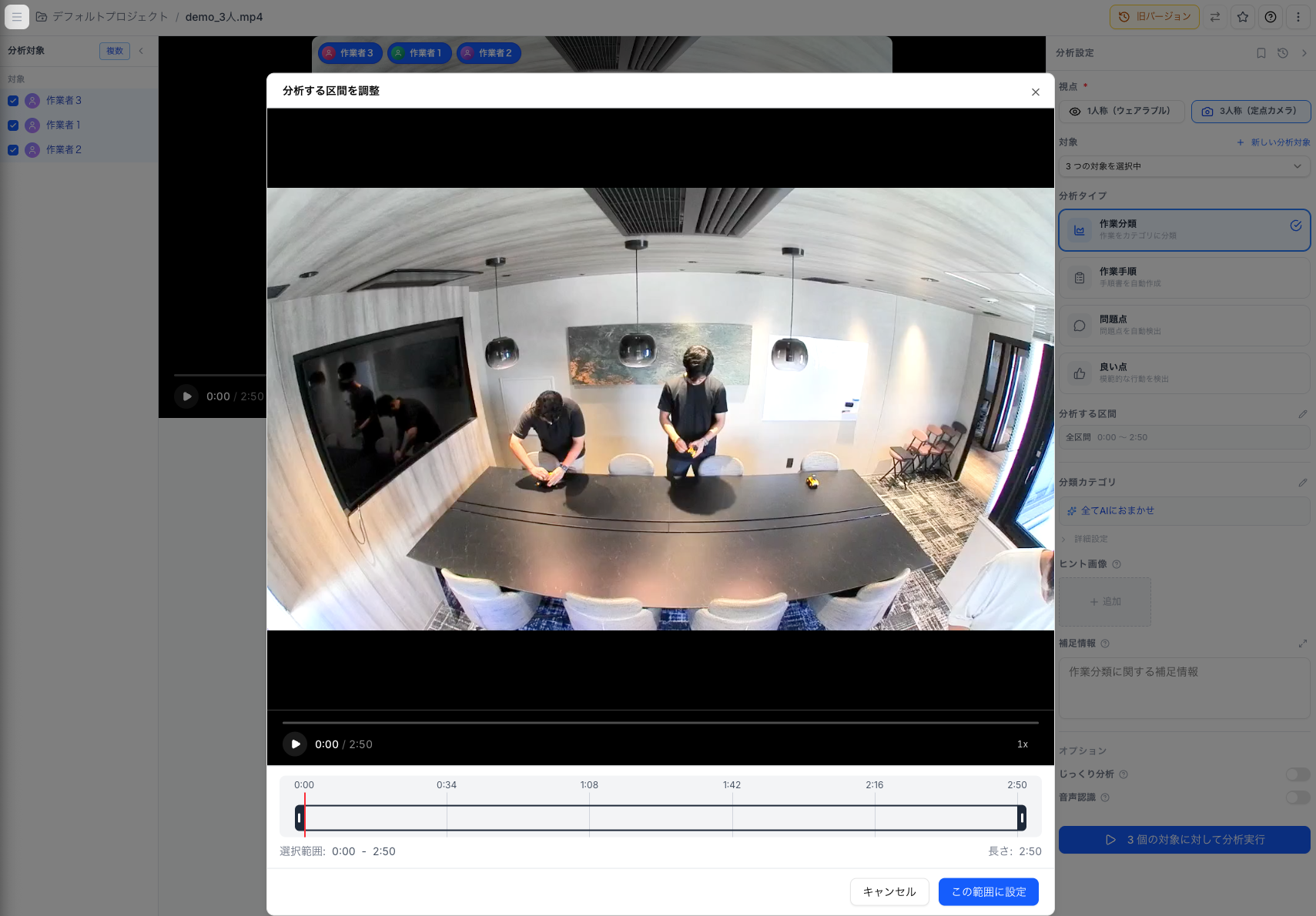
Setup Steps
Step 1. Click the "Segment to analyze".
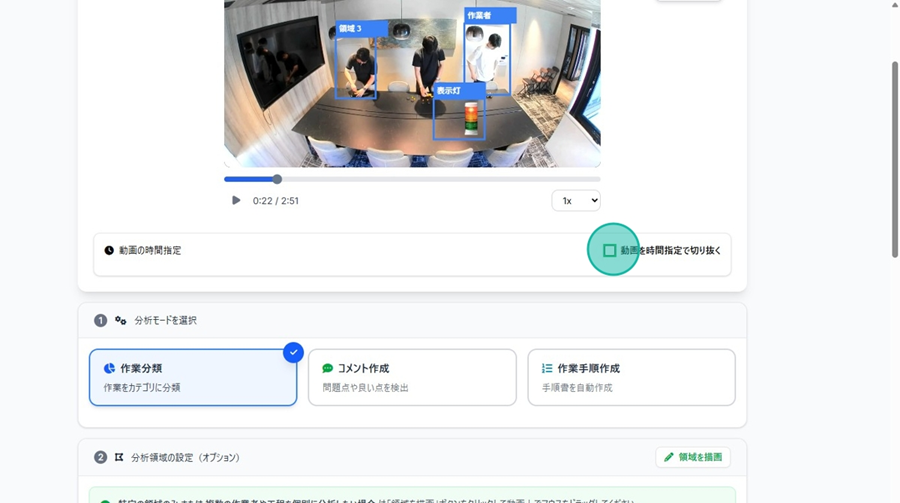
Using the Video Preview
Step 2. Move the playback bar to the point where you want the analysis to start.
Step 3. Repeat the process to set the end point.
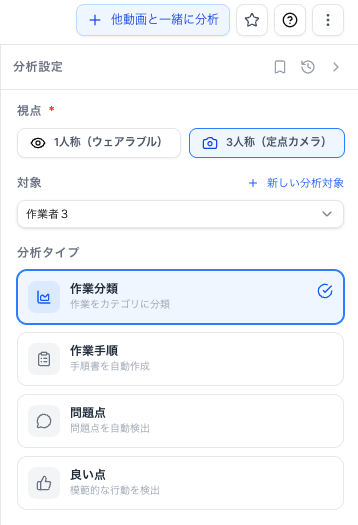
Select Analysis Mode
- Select "Work Classification."
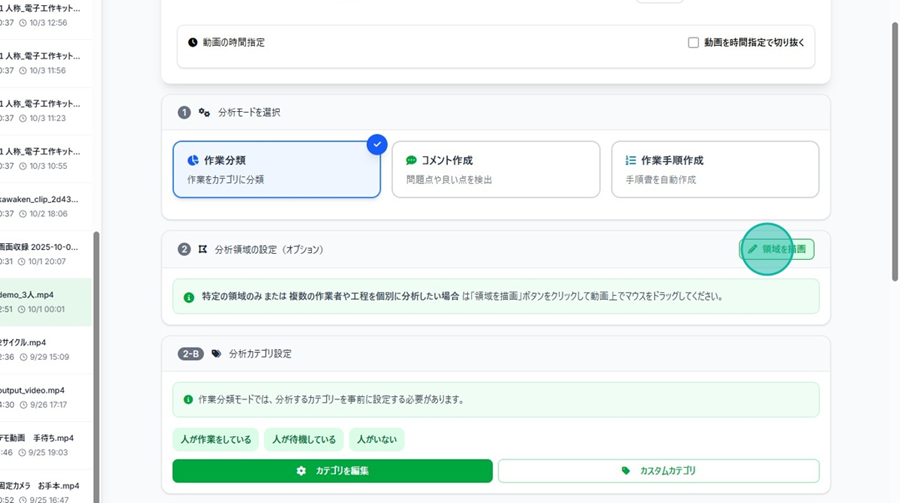
Selecting Analysis Regions (Single/Multiple Areas)
👉 Use this when you want to specify a particular workspace or analyze multiple areas. You can assign different categories to each region.
Specifying an Analysis Region (Single Region)
Step 1. Click "New analysis target."
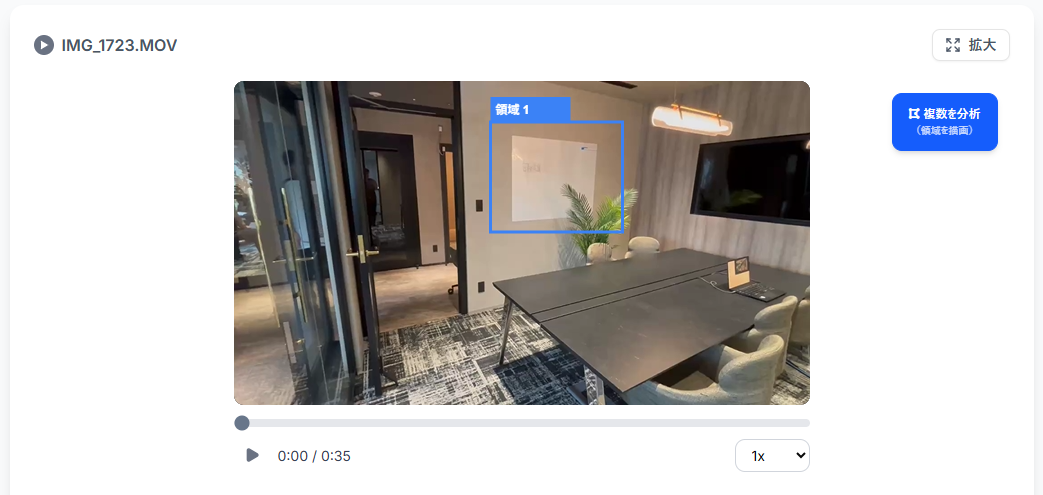
👍 You can also use the "Analyze Multiple" button on the right side of the video.
Step 2. Scroll up and move your mouse over the video.
Step 3. Click and drag to draw a rectangular area.
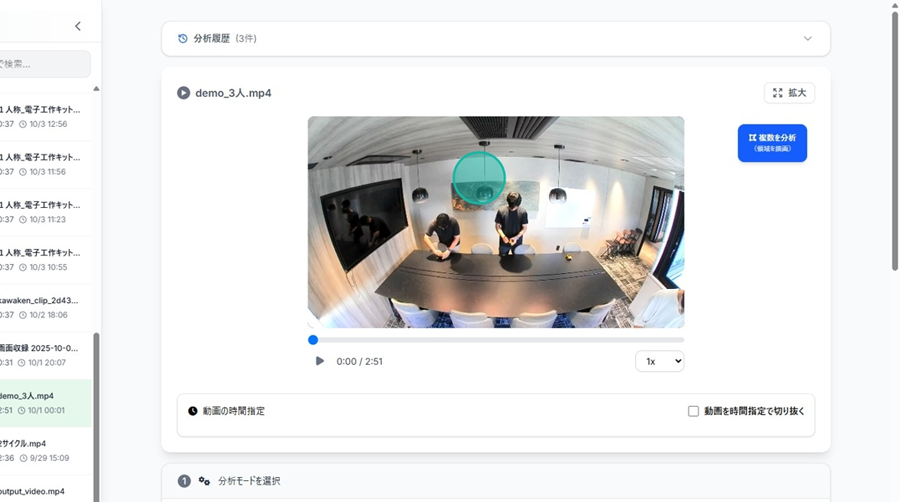
Step 4. Once selected, the capture and settings for the specified area will appear under "Analysis Region Settings (Optional)."
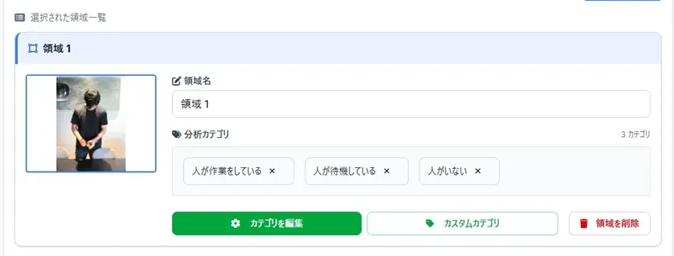
Step 5. Edit the Region Name and Analysis Category based on your desired output.
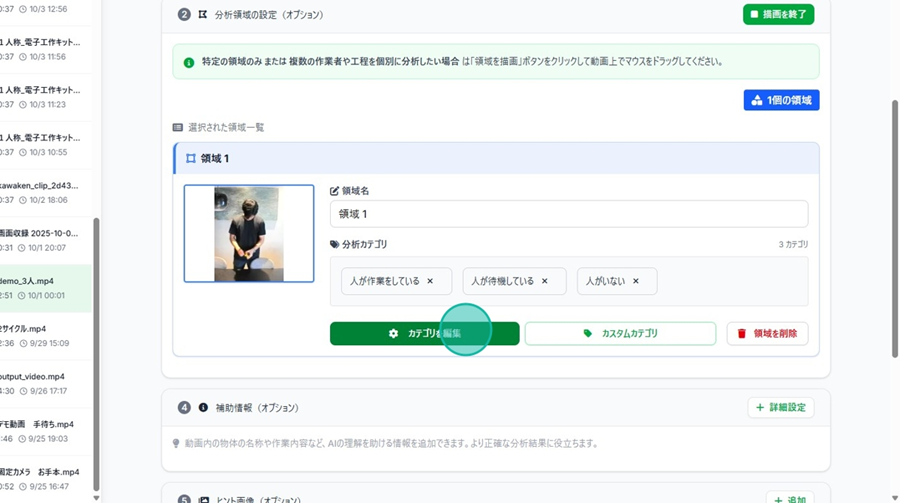
Choosing the Analysis Categories
Setting Analysis Categories
Step 6.
1. Finish the region specification.
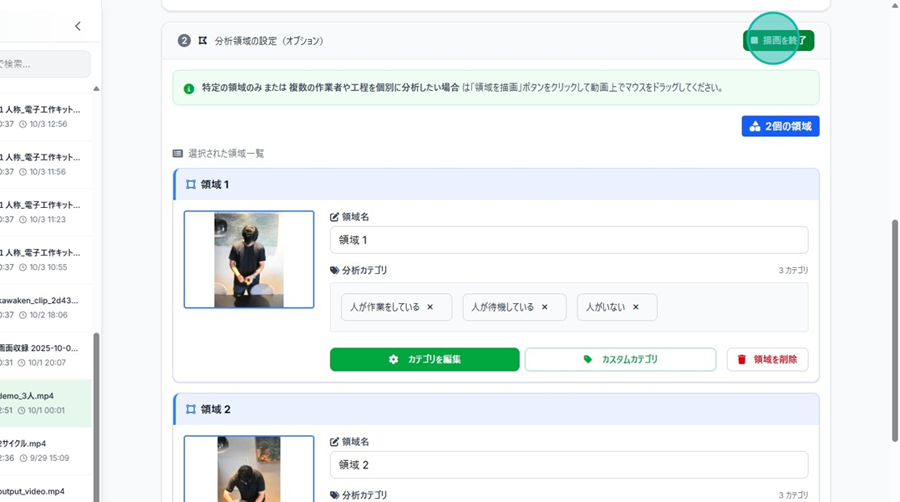
Specifying Analysis Regions (Multiple Regions)
Step 1. Click "Draw Region."
👍 You can also perform the same operation by clicking the 'Analyze Multiple' button on the right side of the video.
Step 2. Scroll up and move your cursor over the video.
Step 3. Click and drag to draw a rectangular area.
Step 4. Continue this process to define multiple regions.
Step 5. Once completed, captures and settings for each specified area will appear under "Analysis Region Settings (Optional)."
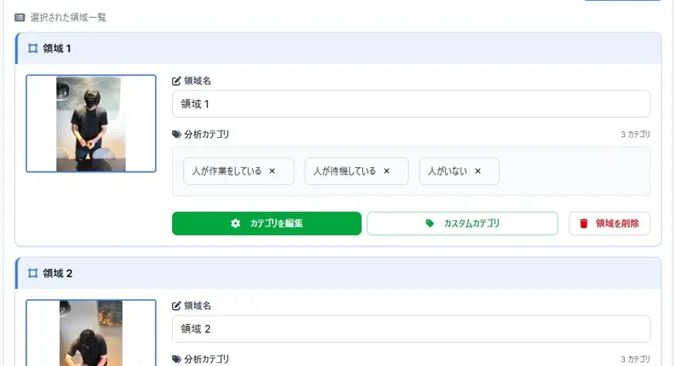
Step 6. Select the Region Name and Analysis Category for each area.
Choosing the Analysis Categories
Setting Analysis Categories
Step 7. Click "Finish Drawing" to exit.