Setting Analysis Targets
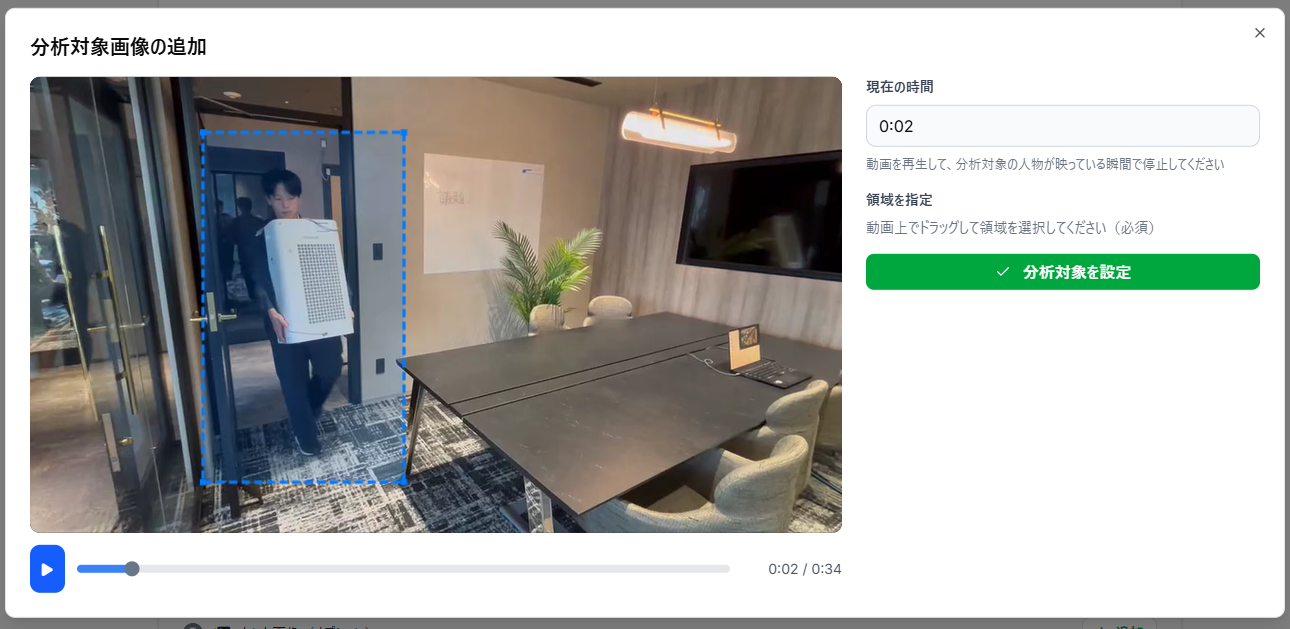
👉 By specifying an analysis target, the AI will perform an analysis focused specifically on that person or object.
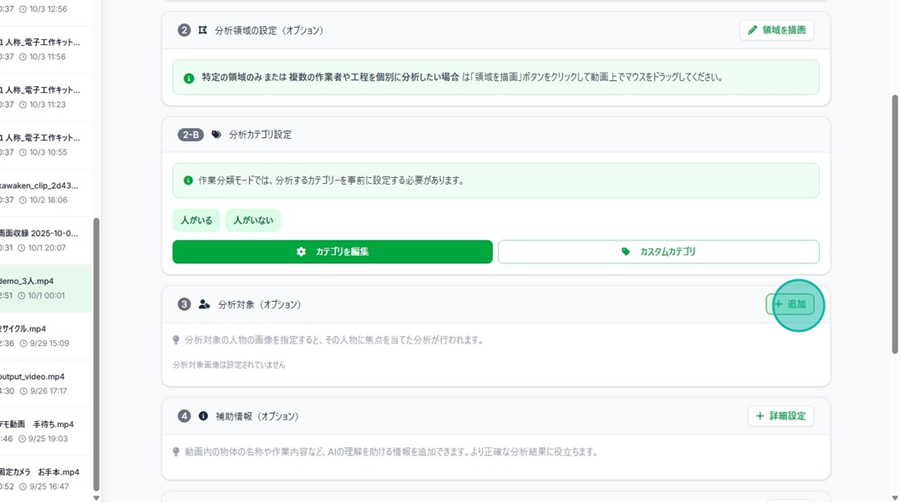
Setup Instructions
Step 1. Click "+ New" on the right side of the "Analysis Target" column.
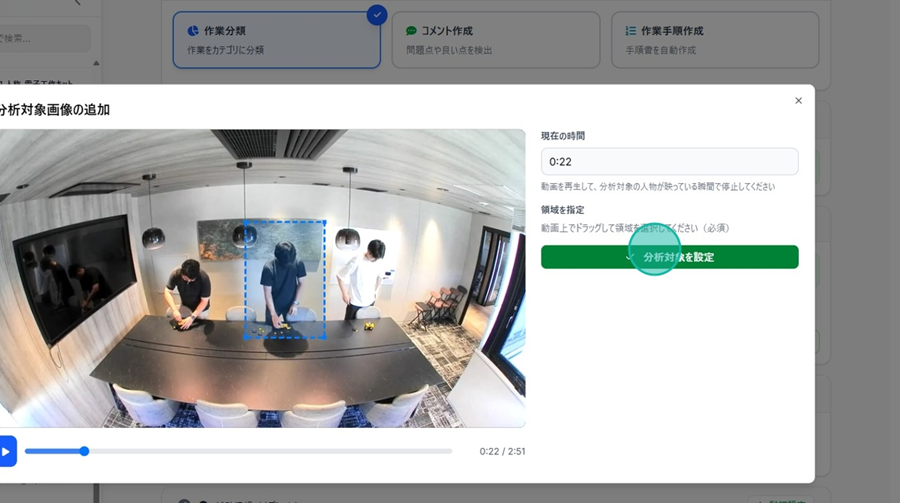
Step 2. Create a rectangular region by clicking and dragging your mouse over the video.
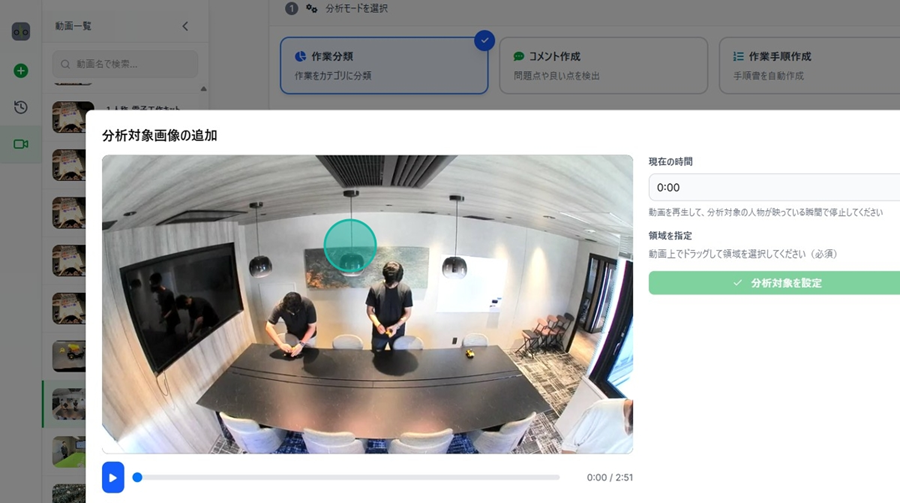
Step 3. If necessary, adjust the frame by moving the playback bar.
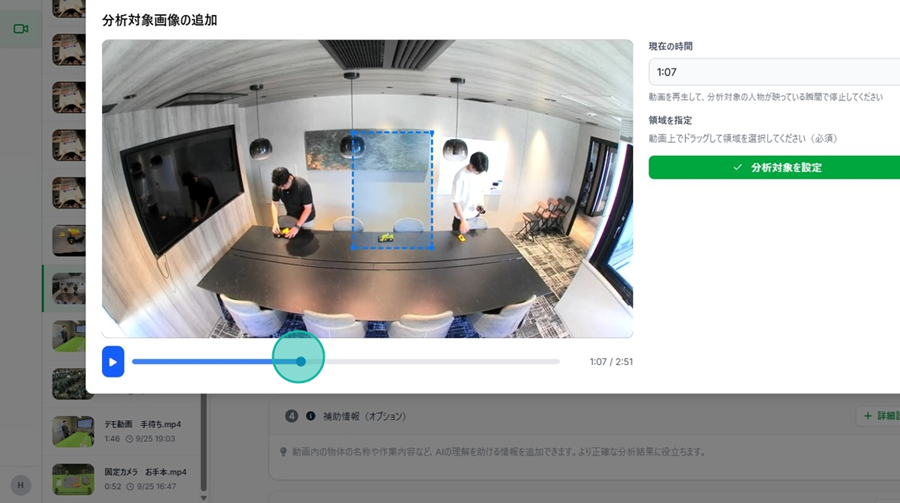
Step 4. Click "Set Analysis Target."
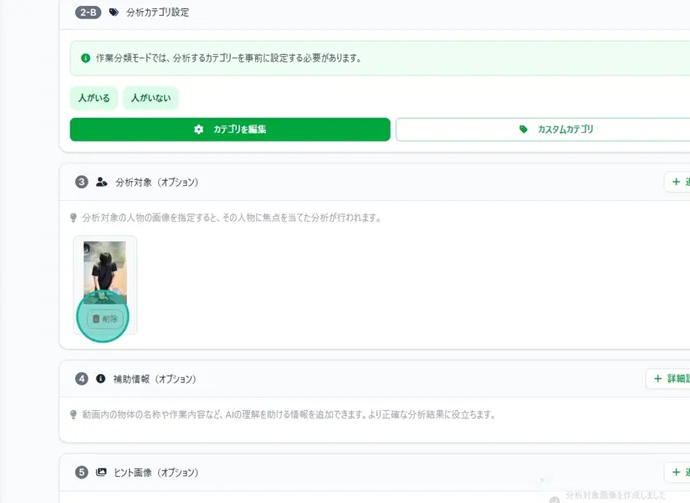
👉 You can remove a target at any time by clicking "Delete."
Setting Supplementary Information
👉 You can freely add information to help the AI understand the video content, such as names of objects or specific task descriptions. This helps improve the accuracy of the analysis results.
Setup Instructions
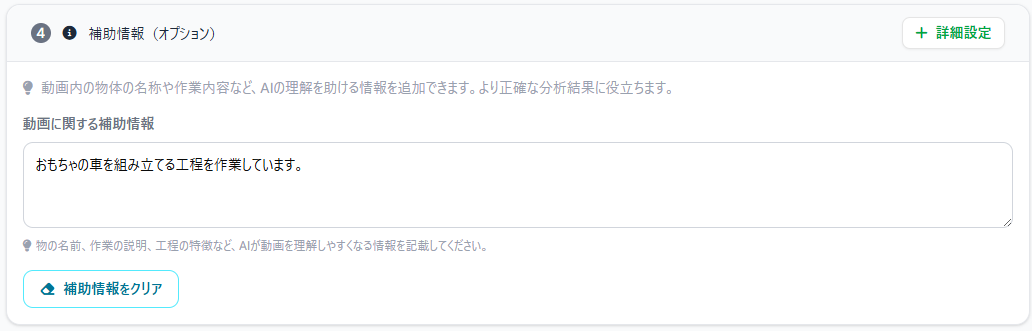
Step 1. Click "+ Advanced Settings" on the right side of the "Supplementary Information" column.
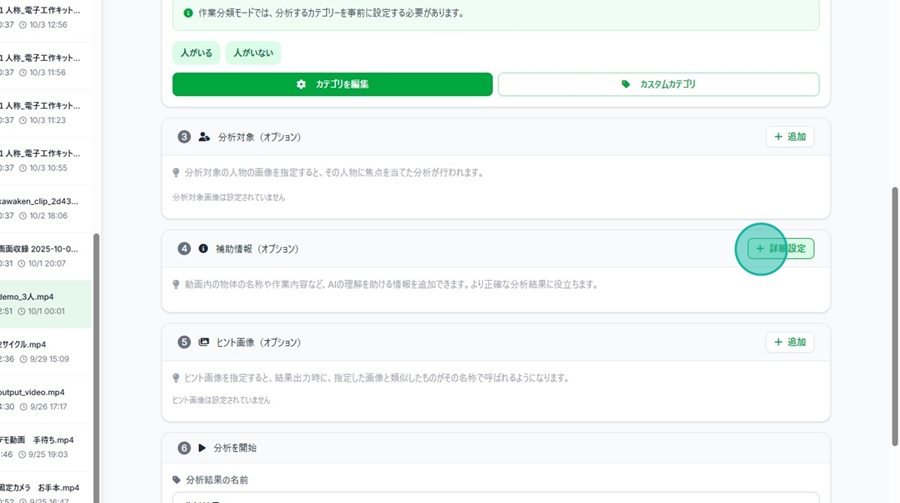
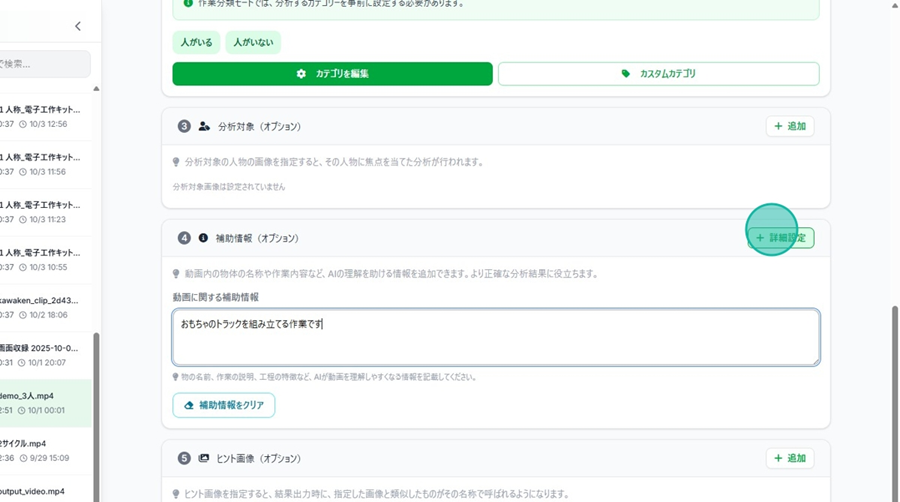
Step 2. Click the "Supplementary Information about the Video" field and enter the details.
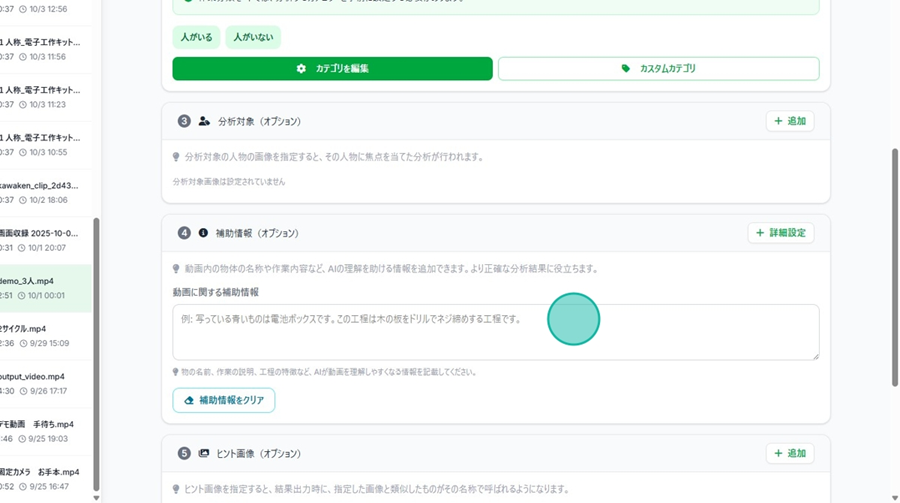
Step 3. Click "Advanced Settings" to exit and save your edits.
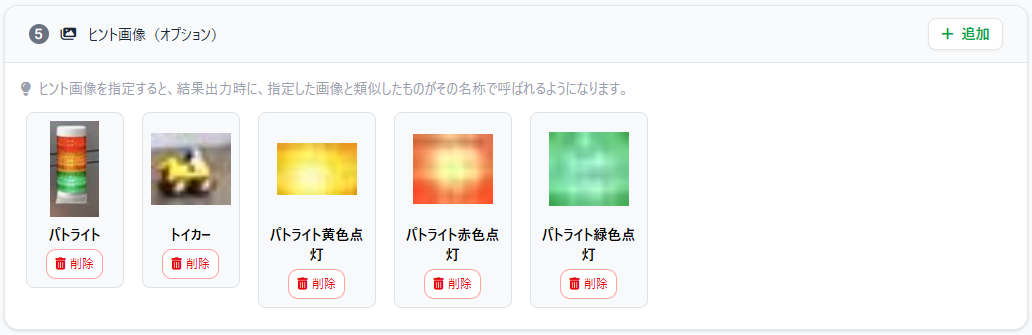
Setting Hint Images
👉 By specifying hint images, the AI will label similar objects found during analysis with the name you provided.
How to Set
Step 1. Click "+ New" on the right side of the Hint Image field.
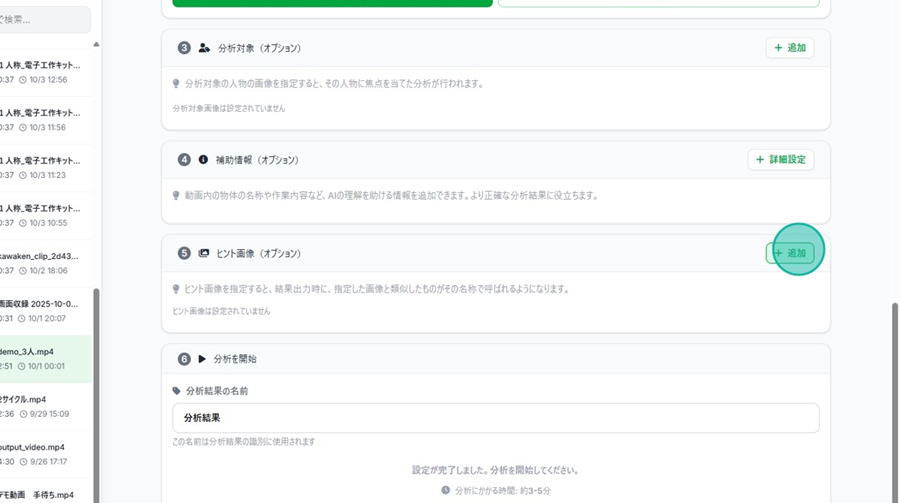
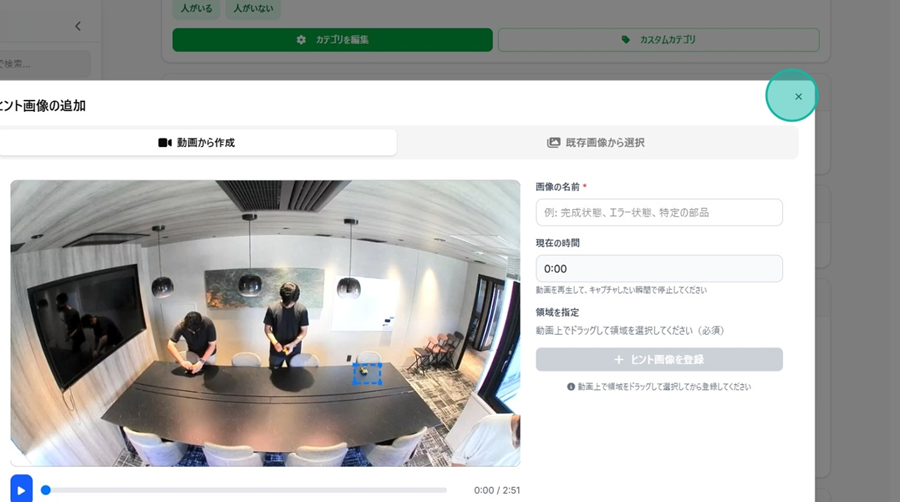
Step 2. Click and drag on the video to create a rectangular area. You can also adjust this by moving the playback bar.
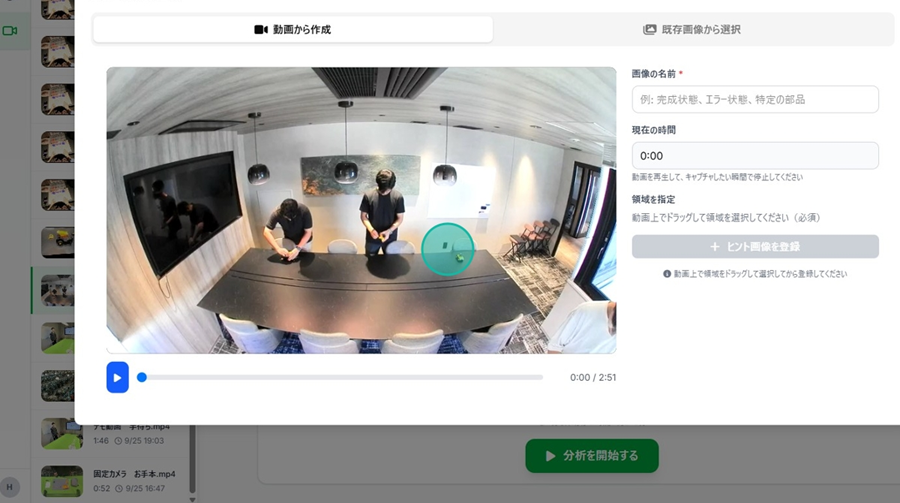
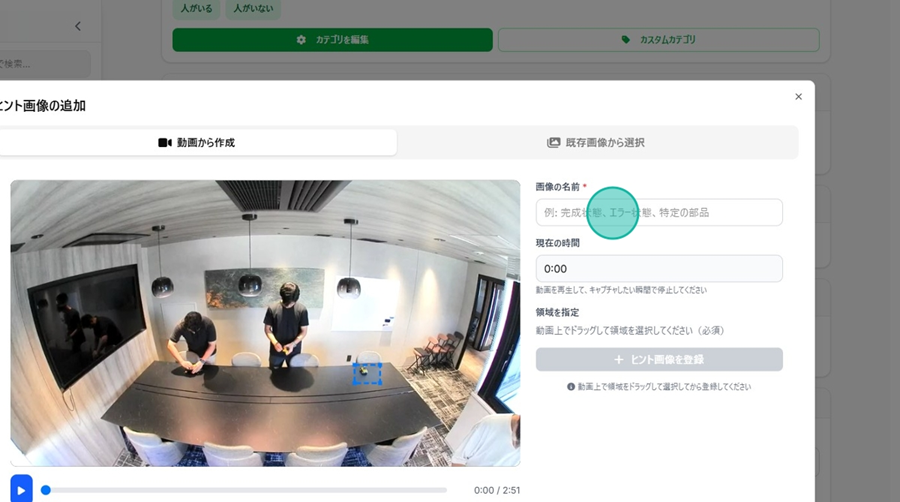
Step 3. Edit the name of the image.
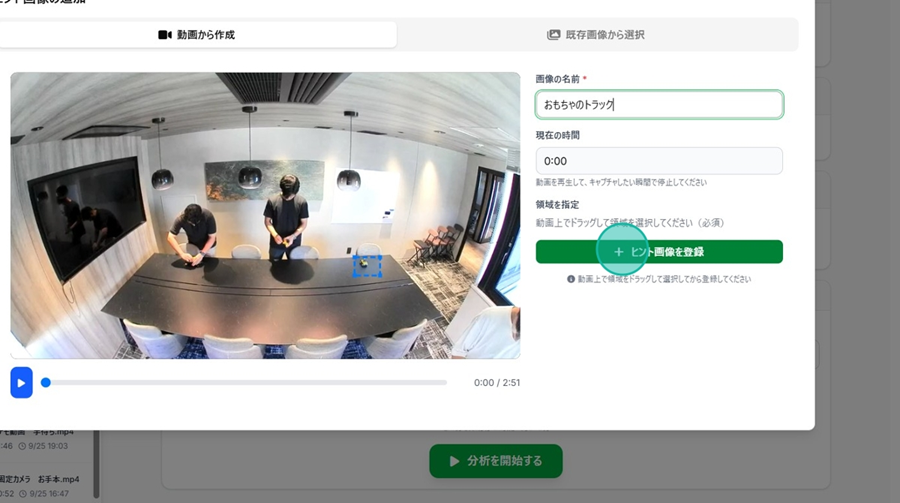
Step 4. Click "Register Hint Image.”
☝ You can register multiple images in succession.
Step 5. Press the "×" button to finish registration.
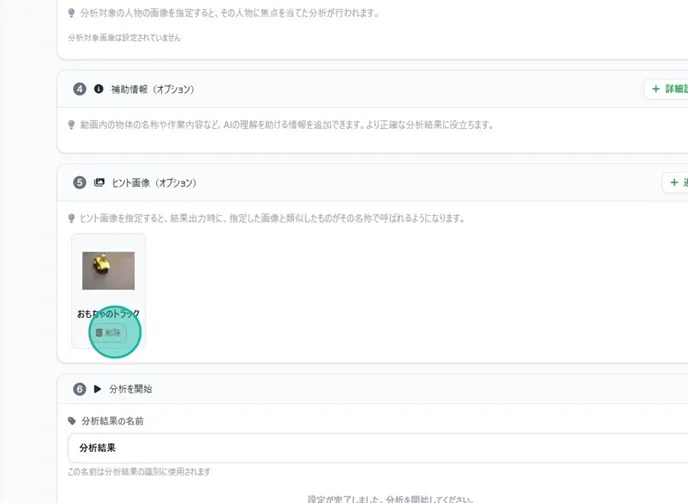
👉 You can also delete an image by clicking "Delete.”
Set Analysis Result Name
👉 You can name your analysis results.
How to Set
Click the "Analysis Result Name" field in the "Start Analysis" section and edit the name.
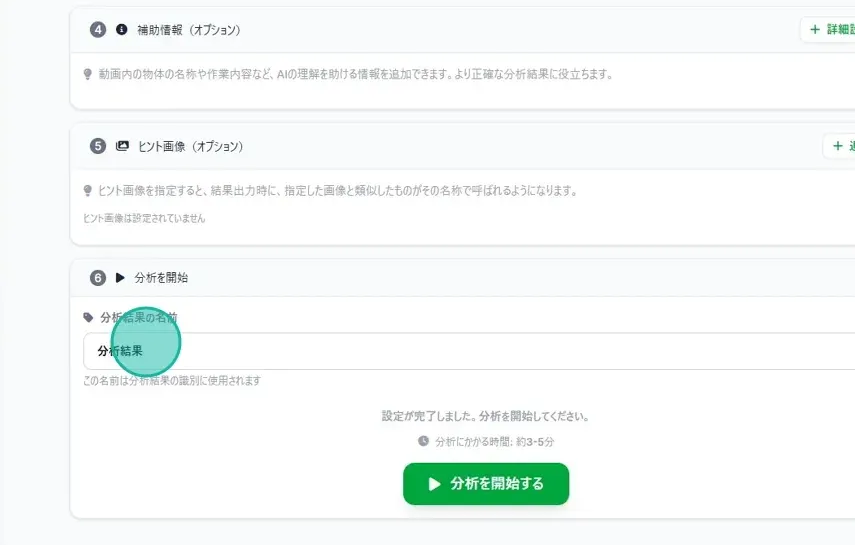
☝ The name registered here will be used in the “Comparison List.”
Viewing Analysis History (For Subsequent Analyses)
👉 You can review past analysis results from the same video or copy previous settings.

Displaying Setup Procedures
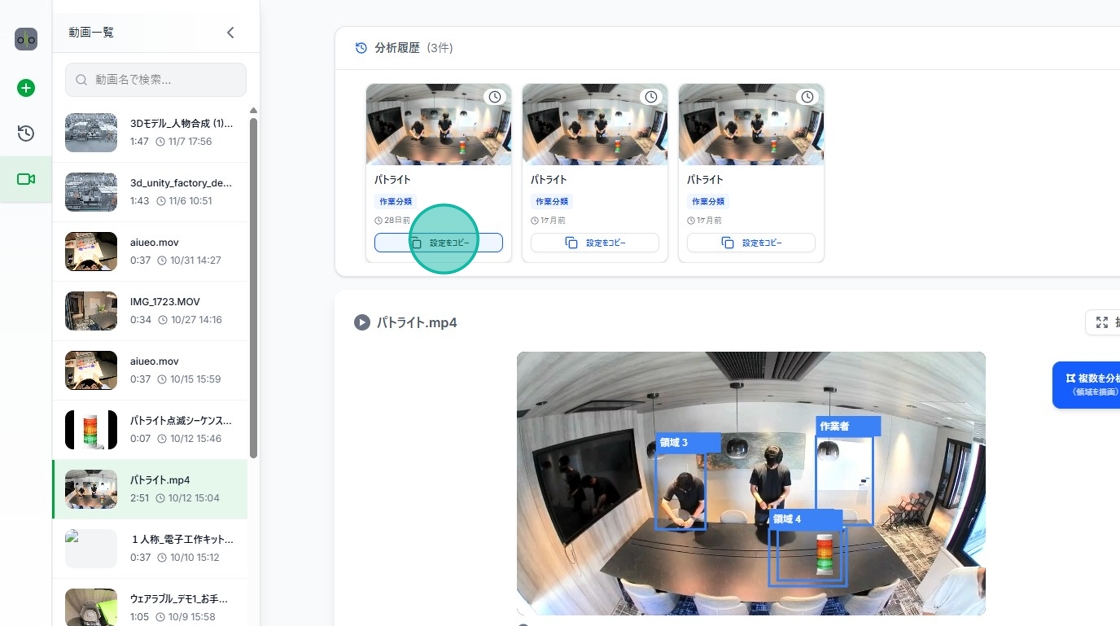
Step 1. Scroll up and click "Analysis History."
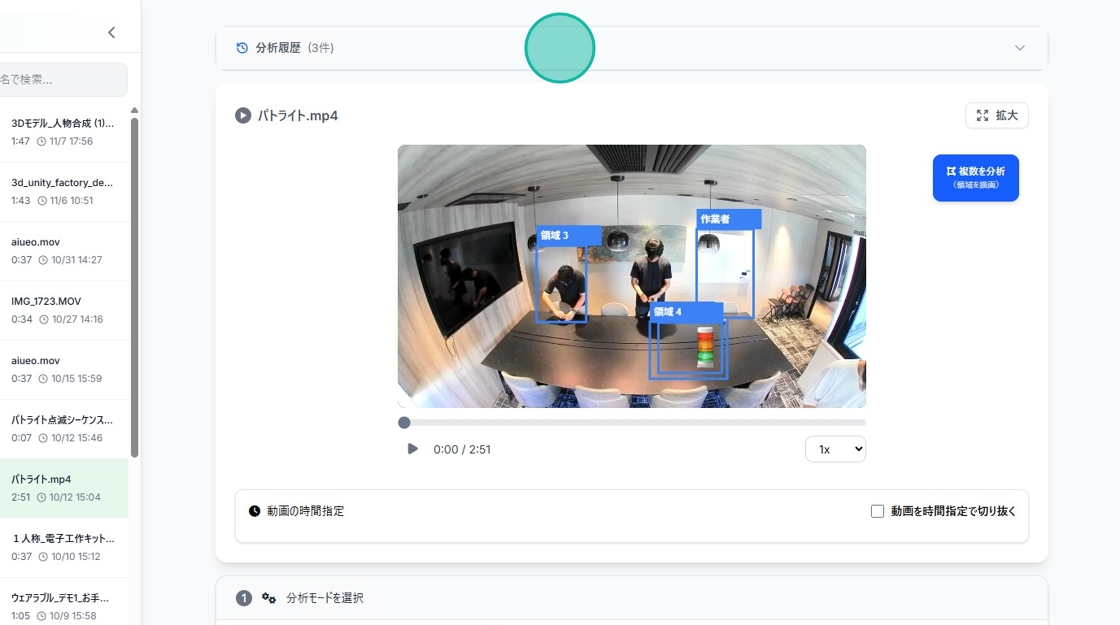
Step 2. Click "Copy Settings" to carry over the settings used in that specific analysis.