
Editing the Analysis Result Name
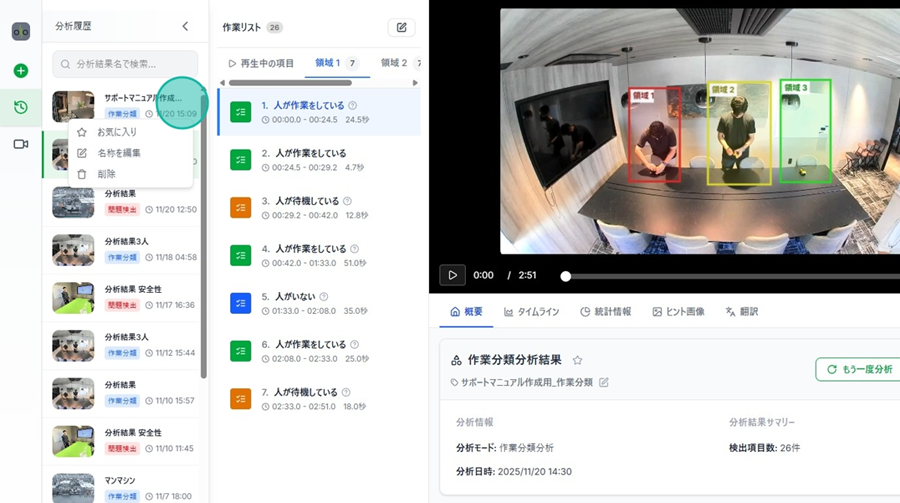
Step 1: Click the "Three-dot Menu" next to the analysis name.
(It appears when hovering over each analysis in the history).
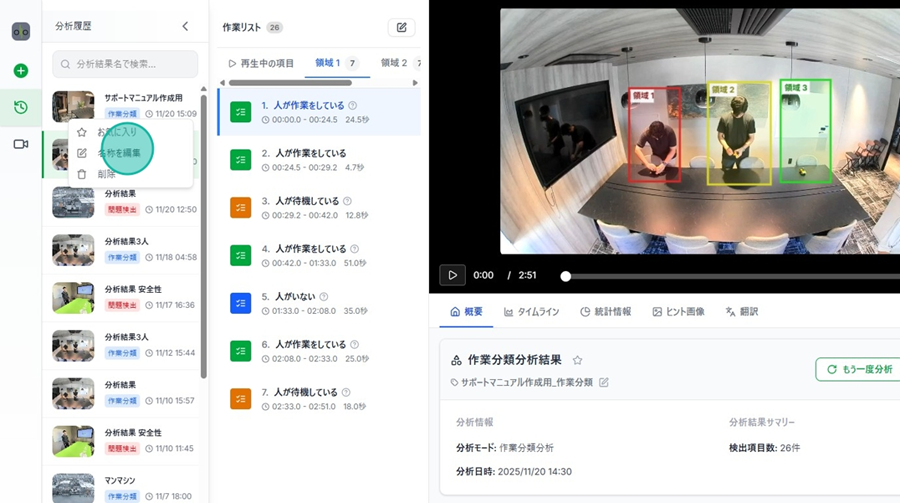
Step 2: Click "Edit Name."
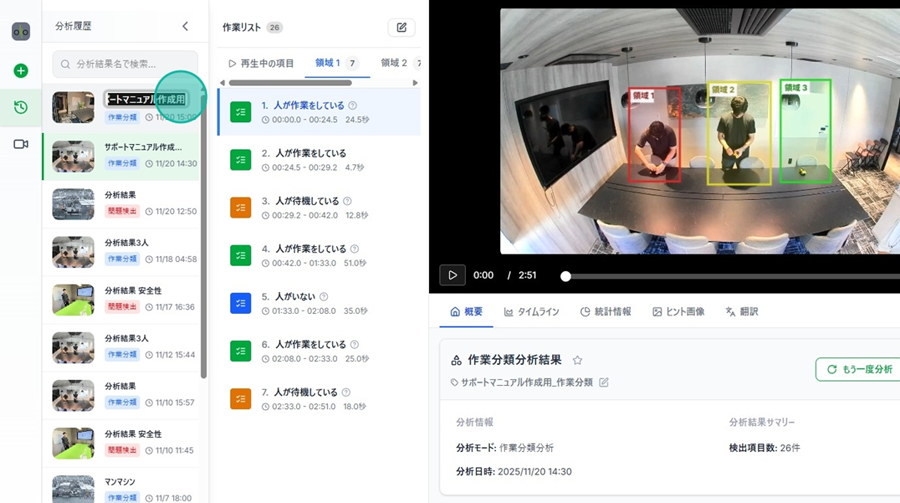
Step 3: Change to the desired name and press Enter or click outside the box.
Displaying Procedures
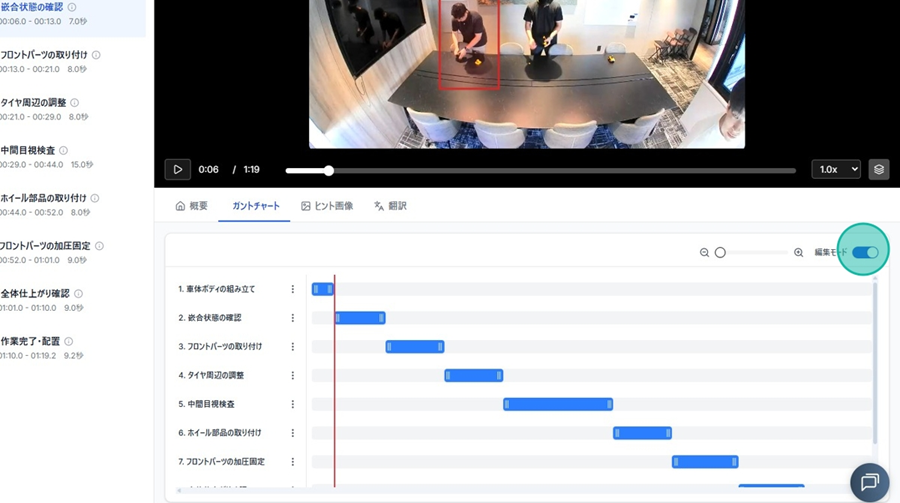
Switch to Edit Mode
Step 1: Click the Edit button on the right side of the Work Procedure List.
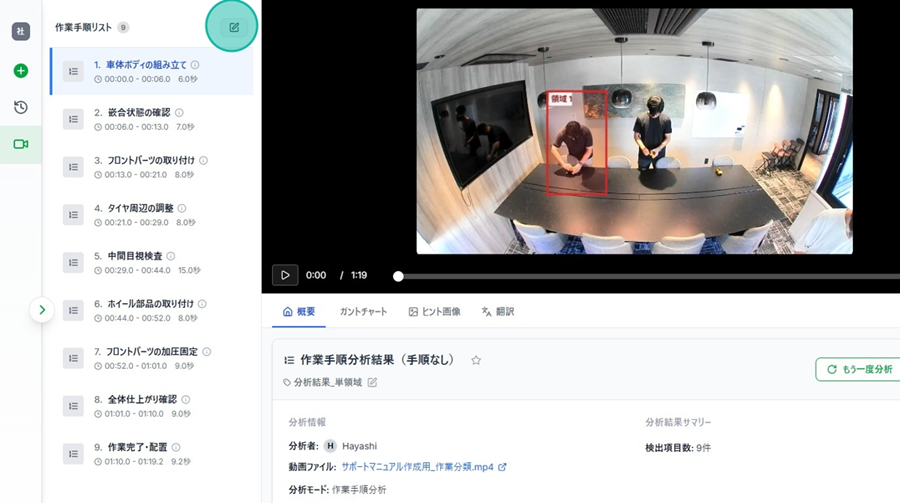
Step 2: Click the Edit button within the Gantt Chart tab.
Changing Assigned Time for a Segment
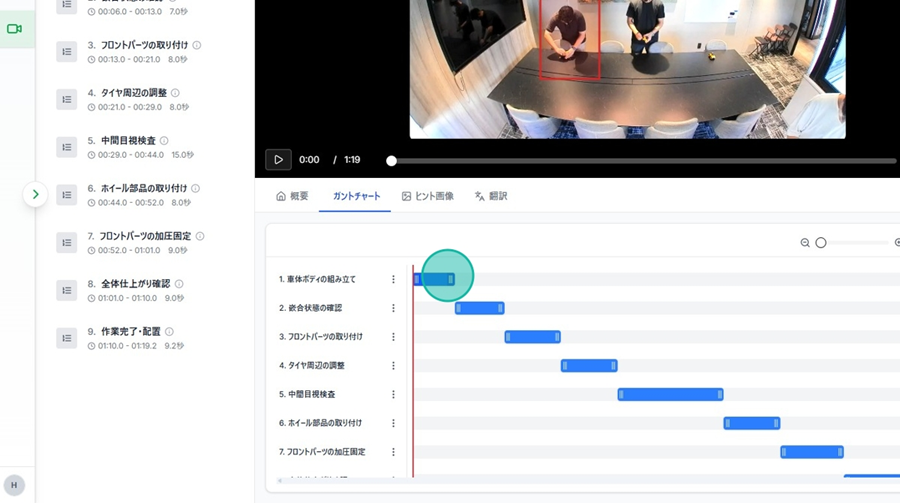
Step 1. In Edit Mode, handles "|||" will appear at the start and end of the process bars.
Step 2. Move the handles forward or backward to adjust the timing.
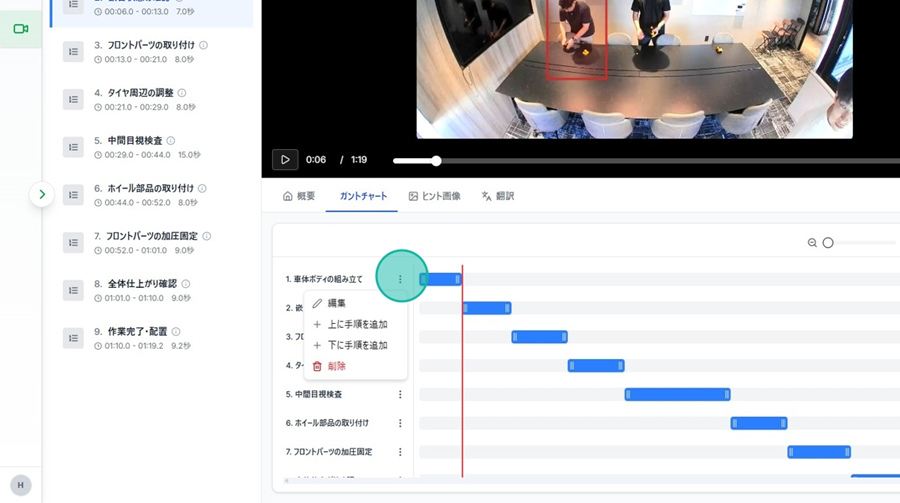
Changing a Segment Name
Step 1. Click the "Three-dot Menu" next to the segment name.
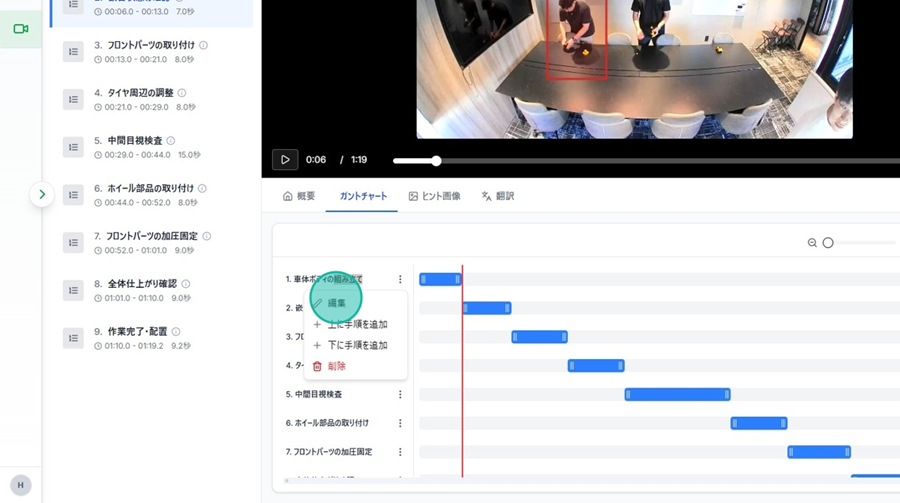
Step 2: Click "Edit."
Step 3: Click the field and enter the segment name.
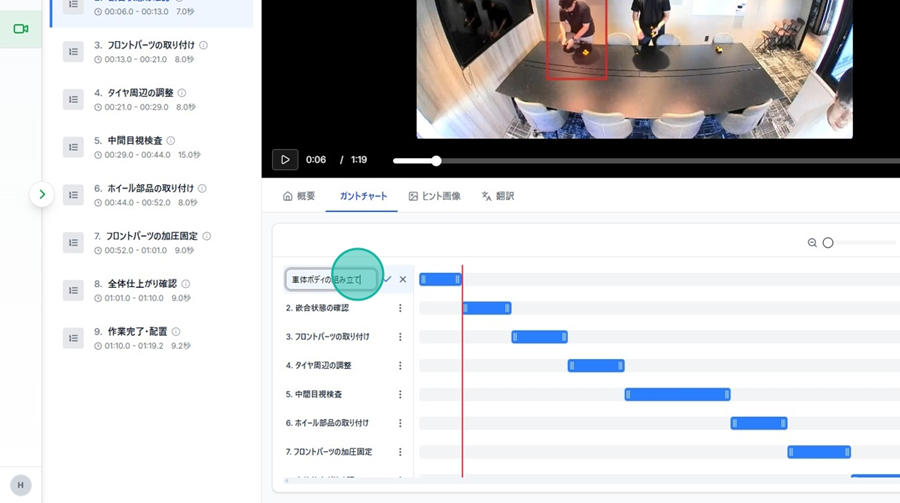
Step 4. Click the "Checkmark" to complete the change (Click the "X" to cancel).
Adding a Process
Step 1. Click the "Three-dot Menu" next to the process name.
Step 2. Click "Add procedure above" or "Add procedure below."
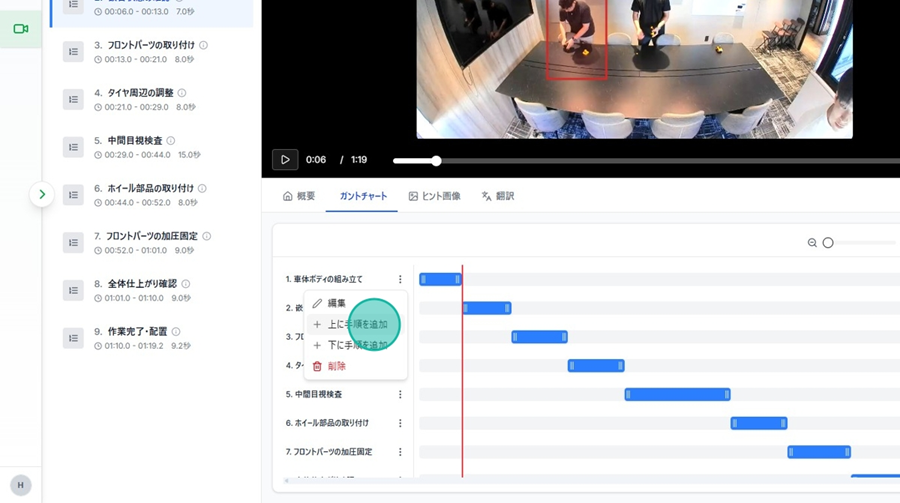
Step 3. A new procedure will be added.
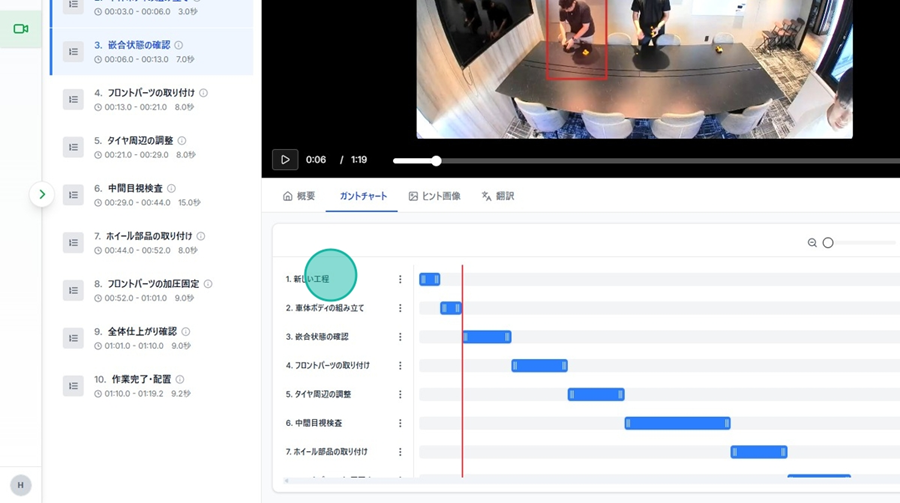
Deleting a Process
Step 1. Click the "Three-dot Menu" next to the process name.
Step 2. Click "Delete" to remove the process.
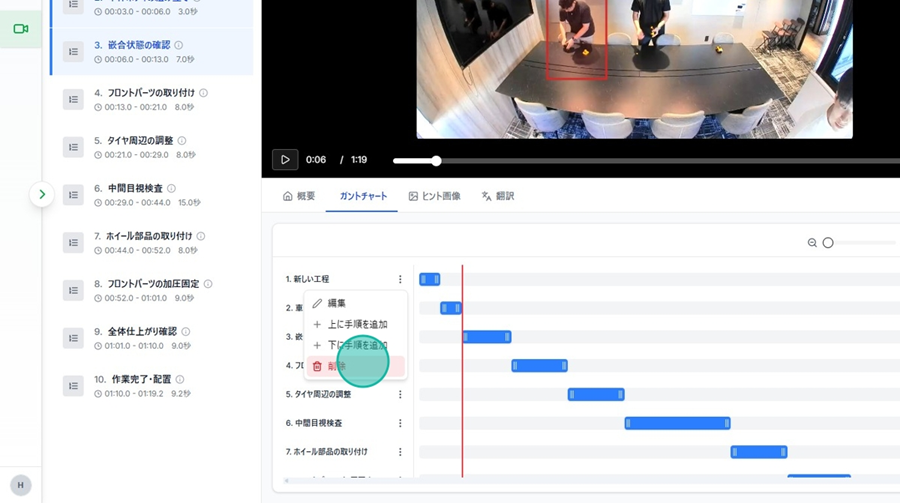
Once editing is finished, click the Edit button in the Gantt Chart tab to save and finish.