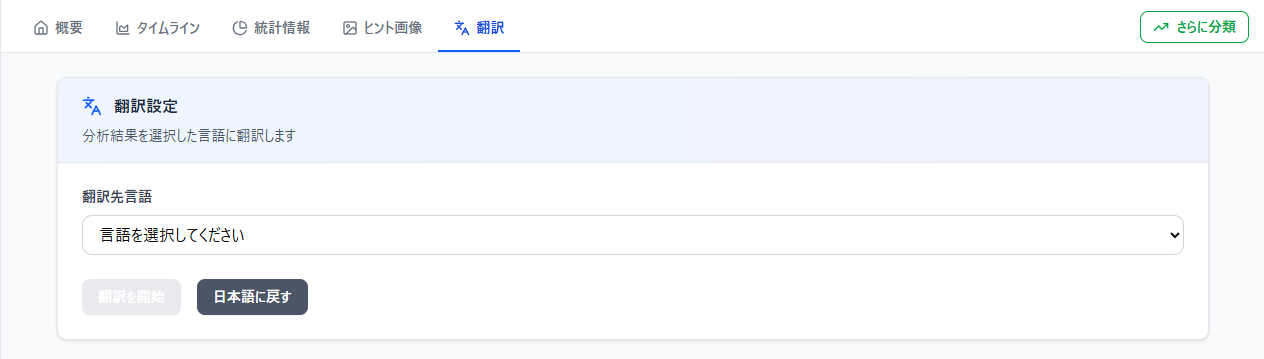
Scroll to the bottom of the page and click the "Start Analysis" button.
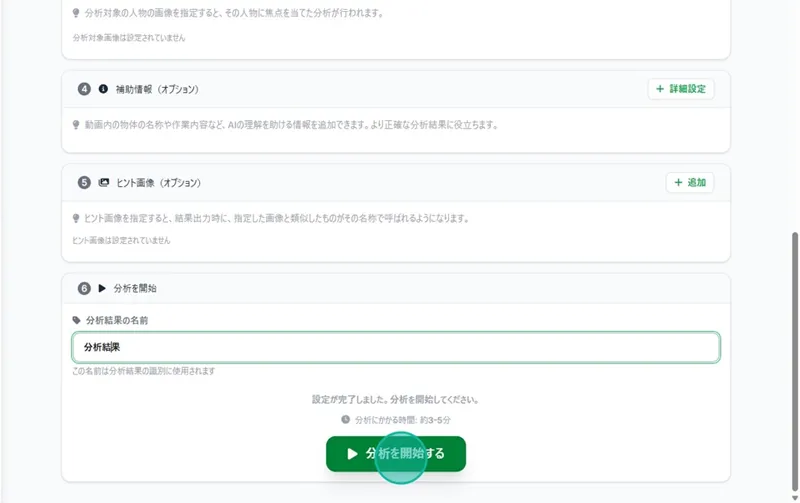
Viewing Analysis Results
- Work Procedure List: Displays the item currently playing or the chronological work procedures for each area.
- Analysis Video Playback: Review the video and areas used for analysis.
- Display Tabs: Select these to change the information being displayed.
- Analysis Result Display: Shows results based on the item selected in the Display Tabs.
- Edit Icon: Allows you to manually edit classification results.
💡 For details on 5, check here:Manually Changing Work Manuals
Work Procedure List
👉 Displays the created work procedures, including the timestamps (seconds) and duration within the video.
Loop Playback
- Clicking a process will loop the playback for that specific process.
- You can confirm the loop status by the rotating circular arrow icon next to the process.
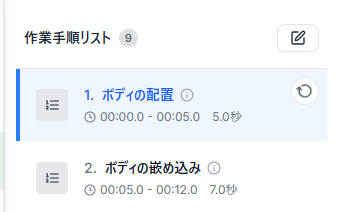
When a Single Area is specified or No Area is specified:
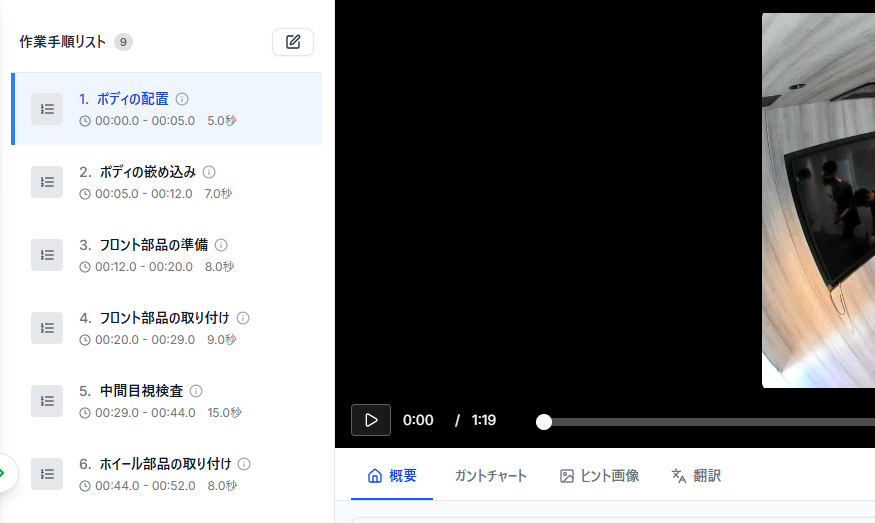
Displays classification results for the entire video (or the specified area).
- (Number next to list/area name): Displays the total number of work procedures created.
- i icon: The action of the process is described in text.
When Multiple Areas are specified
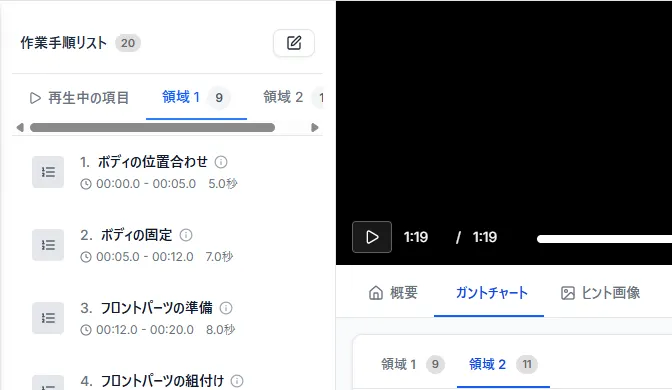
- Currently Playing Item: Displays what is occurring in the specified areas within the video currently playing.
- Area 1... (Specified Area Name): Displays the work procedures within that specified area.
- (Number next to list/area name): Displays the total number of analysis results.
- i icon: The action of the process is verbalized as a description.
Analysis Video Playback
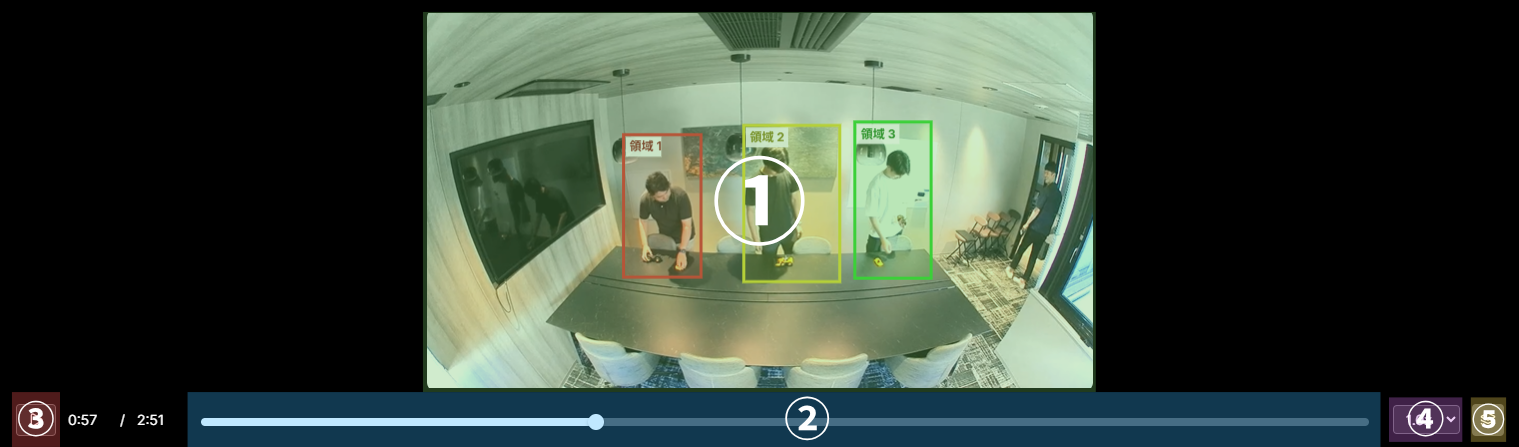
- Analysis Video: The video used for analysis is displayed synced with the playback bar.
- Playback Bar: Play or pause the video.
- Play Button: Play/Pause the video.
- Playback Speed Button: Select video speed from 0.5x to 8x.
- Area Display Button: Toggle the visibility of specified areas.
Display Tabs / Analysis Results
Overview
👉 Displays an overview of the analysis.
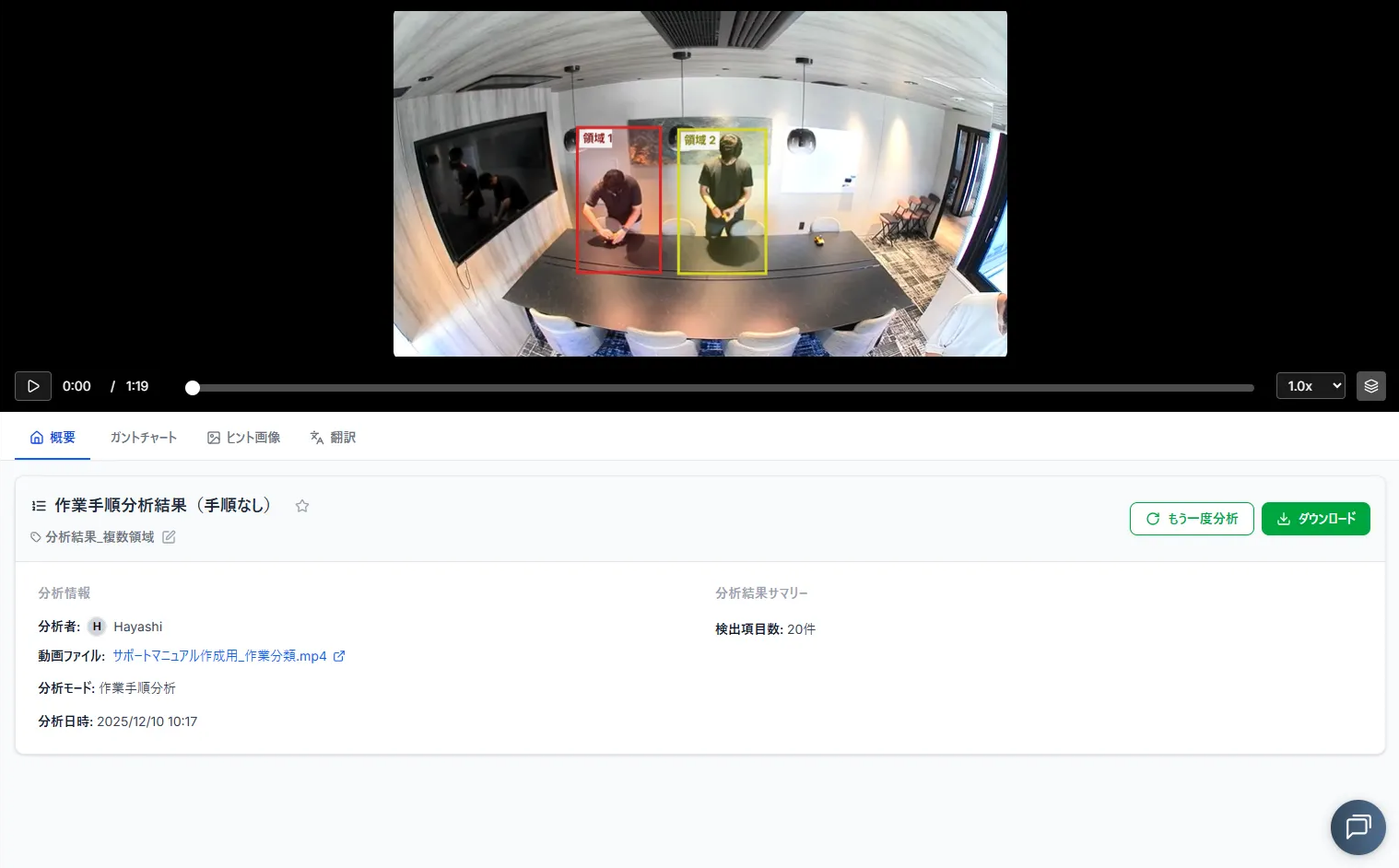
Add to Favorites
👉 Makes it easier to find videos from the video list.
Edit Analysis Result Name
Check here: Changing the name from the Analysis Summary
Re-analyze
Check here: Performing Analysis Again
Download the Analysis Results
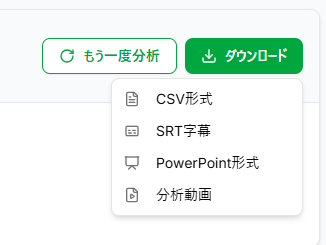
CSV Format
- Outputs a file named "(Analysis Result Name).csv" containing Area Name, Step Number, Work Name, Task, Start/End Times, and Duration.
SRT Format
Outputs a subtitle file (SRT).
What is an SRT file?
💡 An SRT file is a text file used for recording video subtitles. Example:
> `1`
`00:00:00,000 --> 00:00:05,000[Area 1] [Step 1] Body AlignmentPlace the yellow body part on the black chassis and carefully align the mounting position.`You can easily insert subtitles into videos using video editing software. Use this alongside the analysis video download.
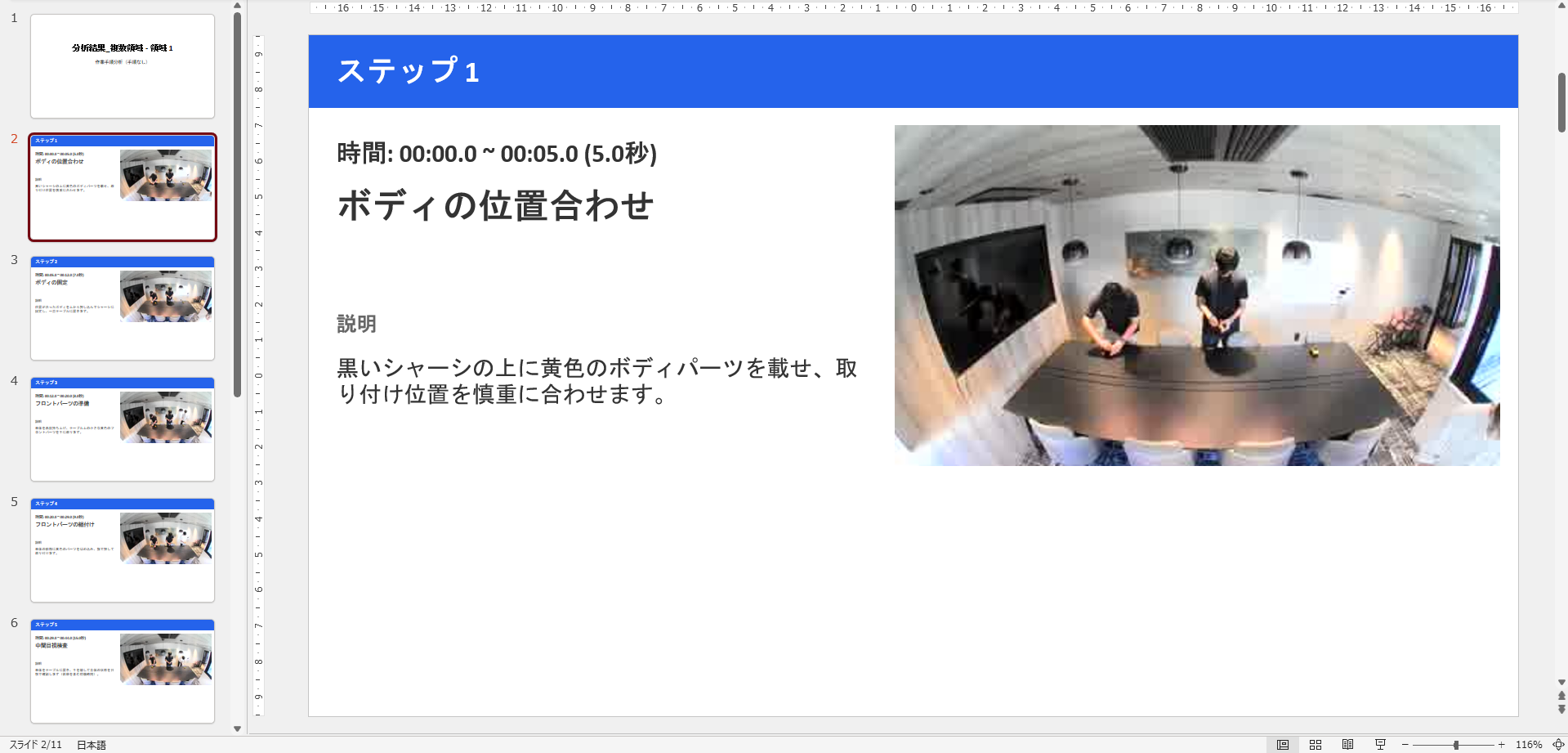
PowerPoint (PPTX) Format
Outputs .pptx files for each area.
Analysis Video
Download the video used for analysis in its original uploaded format.
Gantt Chart
👉 Our AI summarizes the created procedures into a Gantt chart.
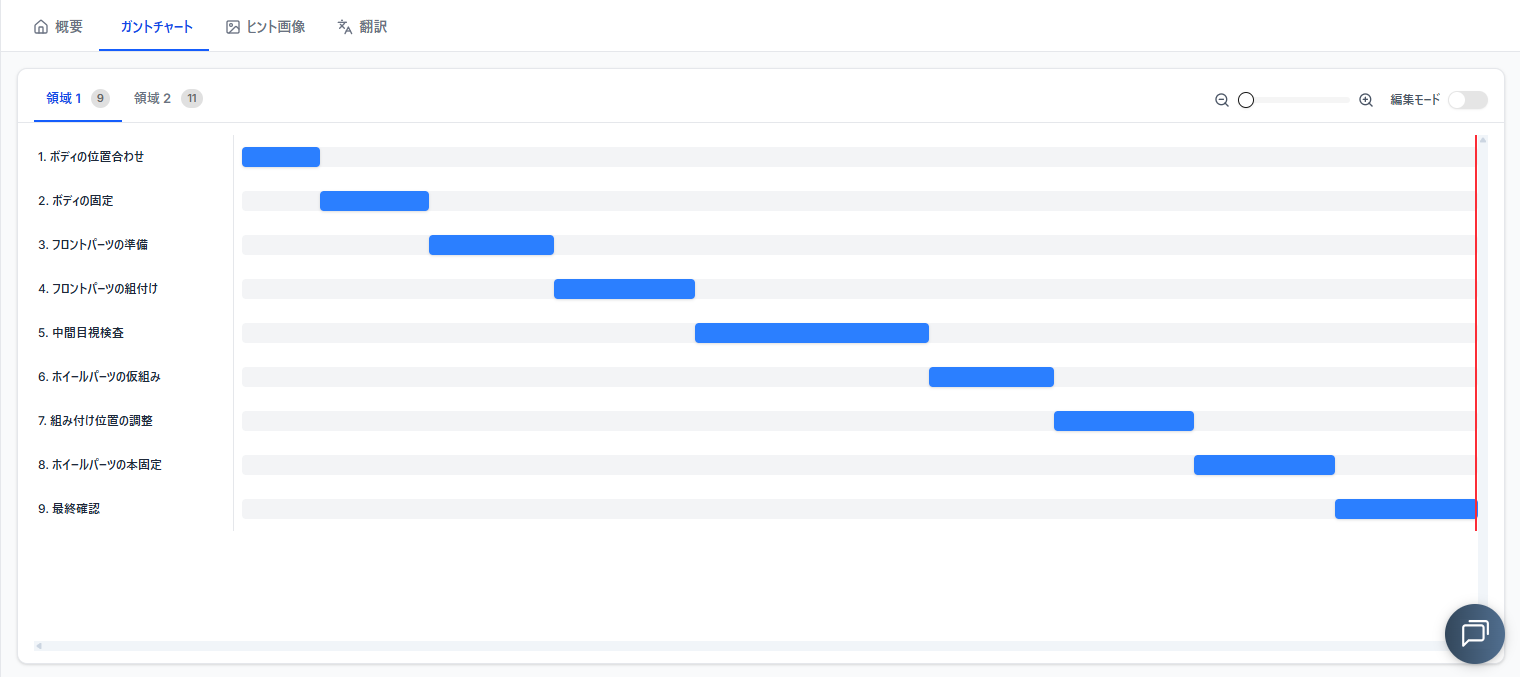
- Displays Gantt charts for each area.
Loop Playback
- Clicking each process bar loops the playback for that specific process.
- Click again to cancel.
- Loop status is indicated by the rotating circular arrow next to the process.
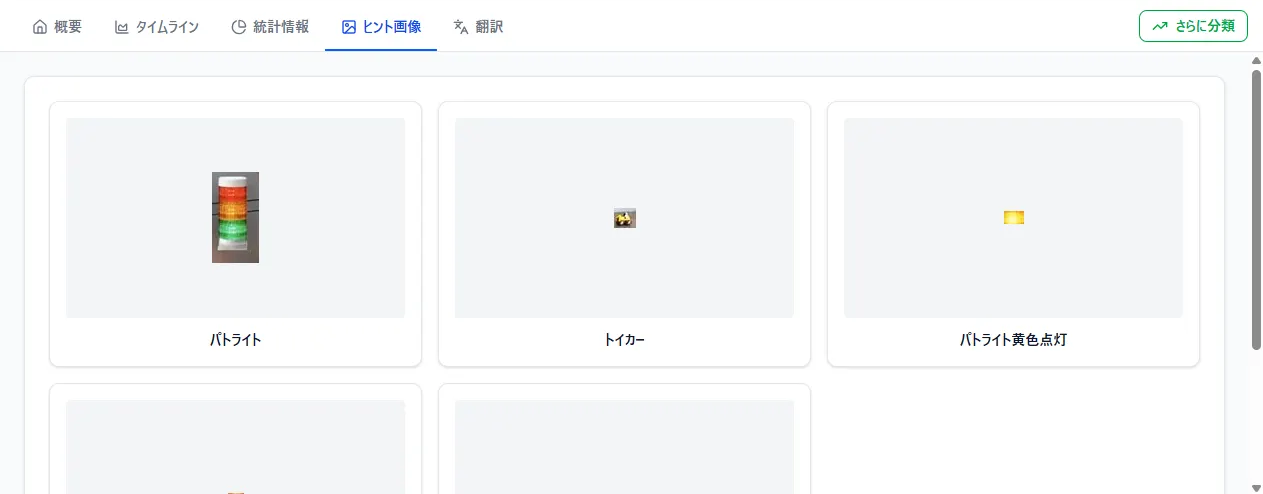
Hint Images
👉 View the hint images registered before the analysis.
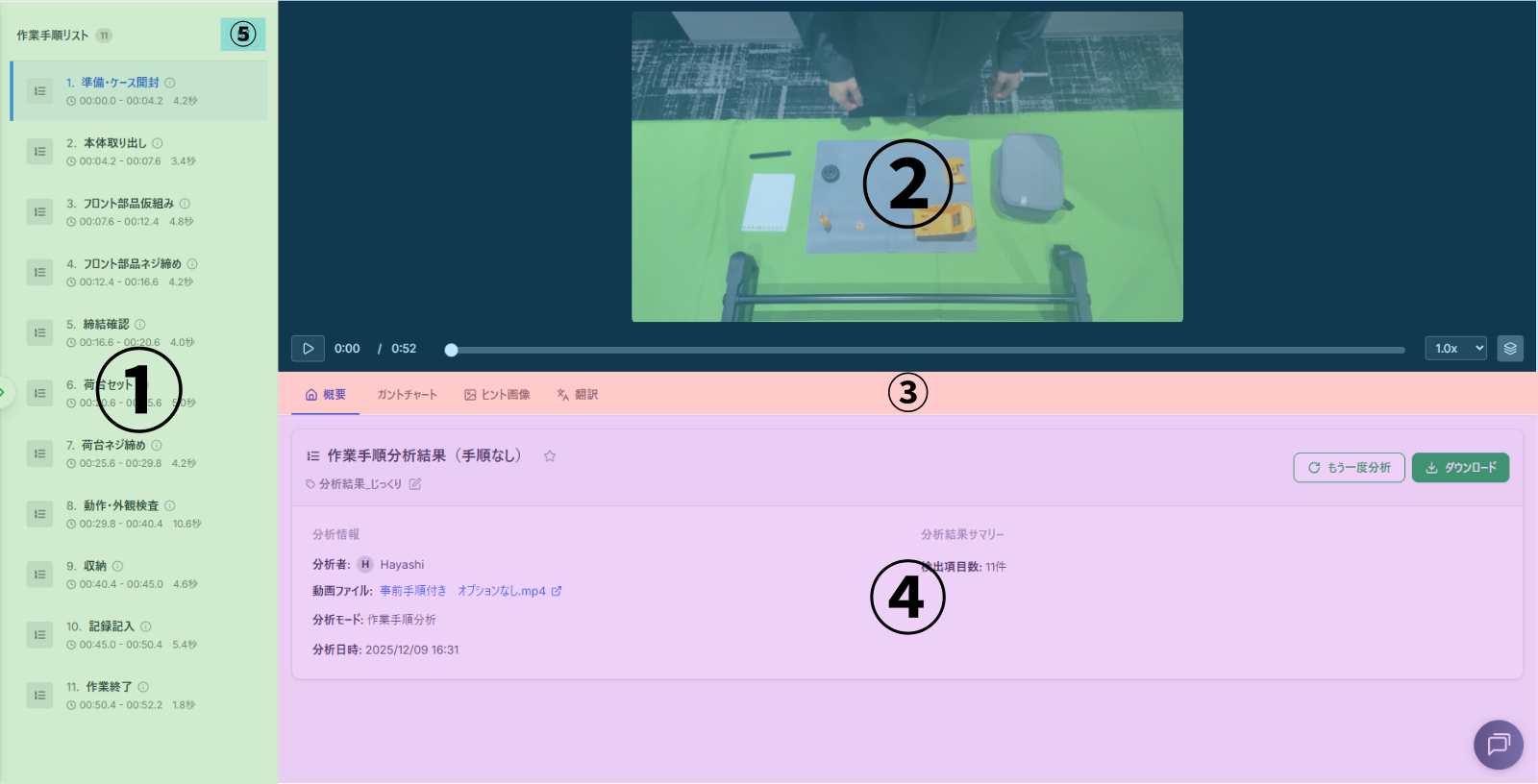
Translation
👉 Translate the results into a specified language.
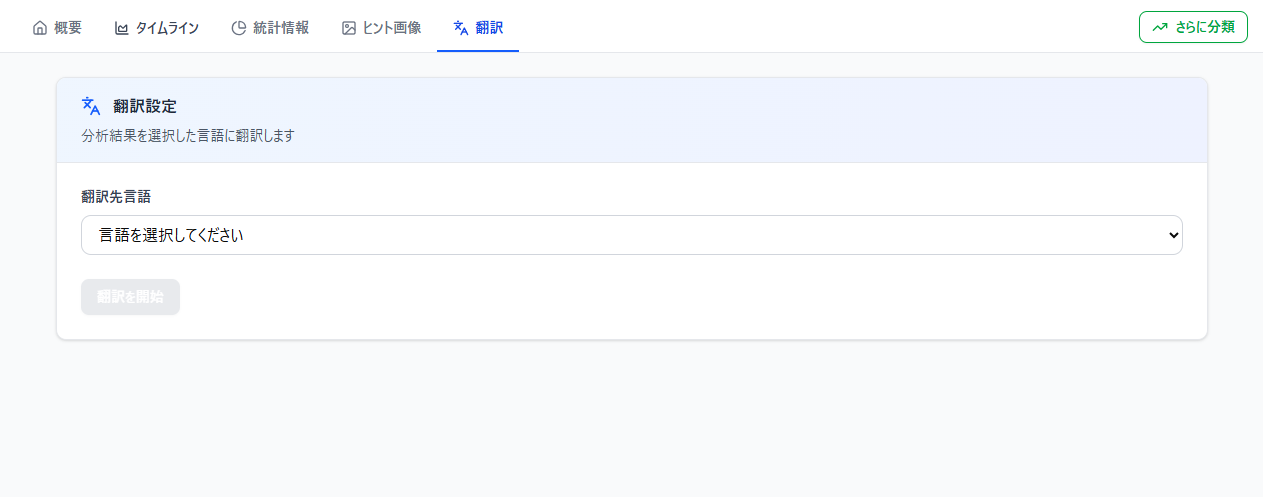
- Supported Languages:
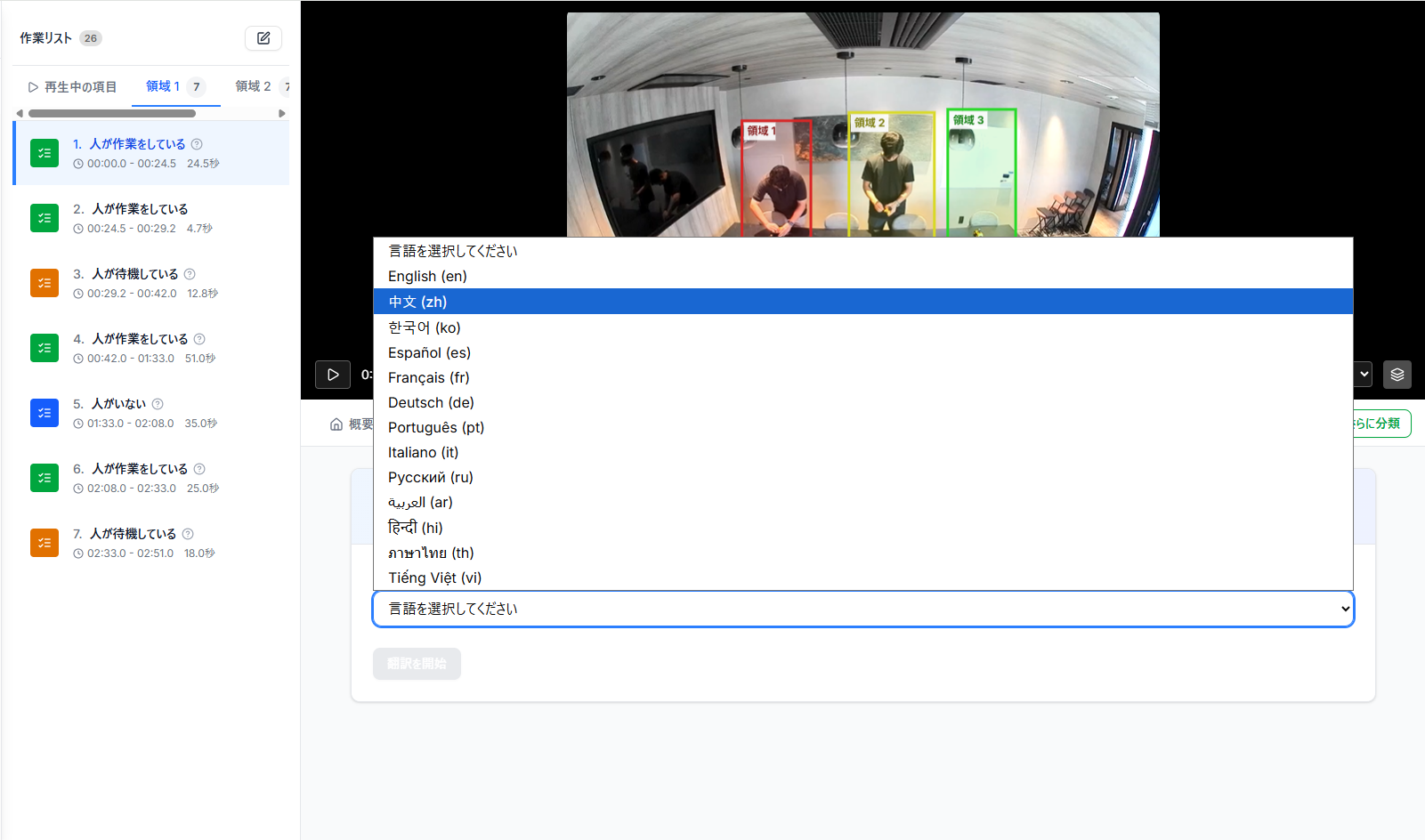
English, Chinese, Korean, Spanish, French, German, Portuguese, Italian, Russian, Arabic, Hindi, Thai, Vietnamese and more to come.
Displaying Procedures
Step 1. Click "Please select a language" and choose the language you want from the list.
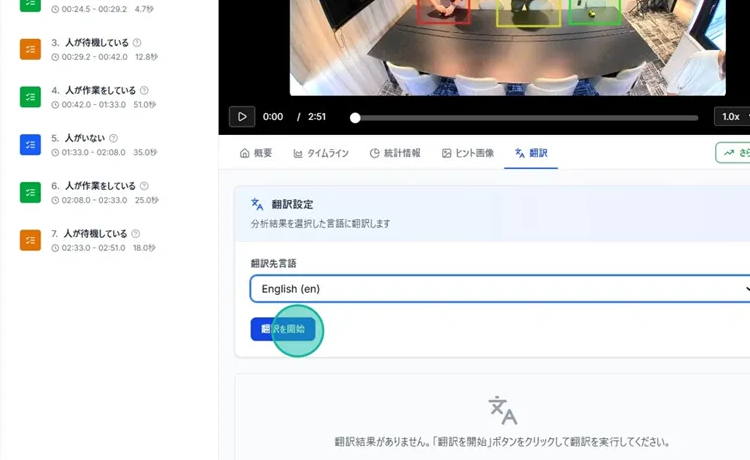
Step 2. Click "Start Translation" and wait for the process to complete.
Step 3. The translated results will be displayed.
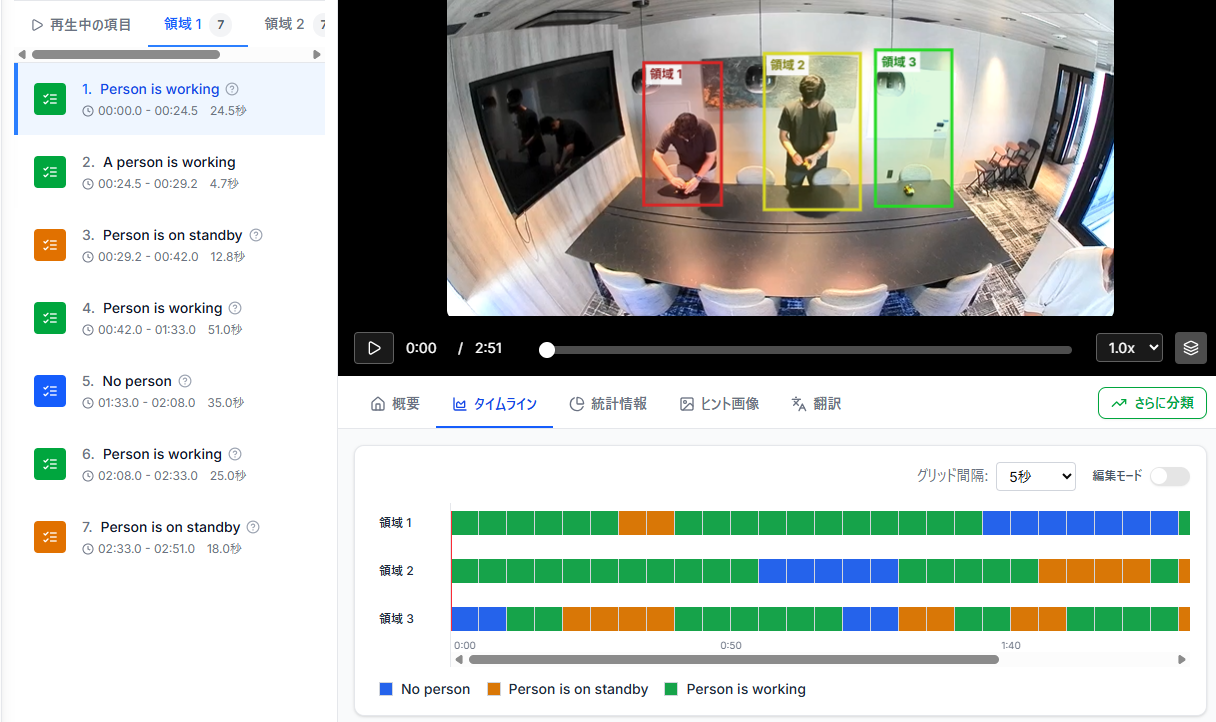
- To revert to original language, a "Remove Translation" button will appear, allowing you to switch back instantly.
- Translation time is reduced from the second time onwards.